By
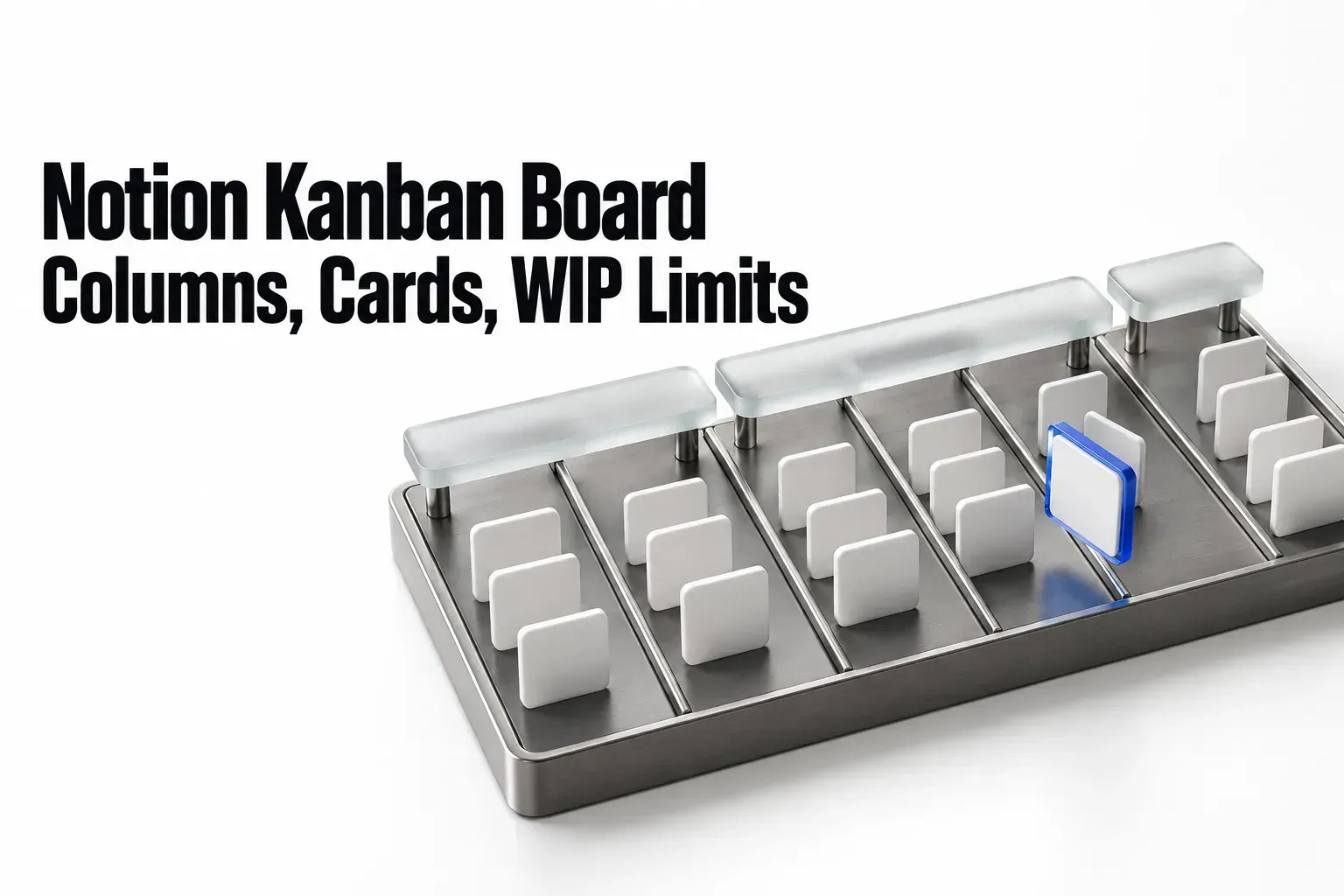
A Notion kanban board is a database in Board view: each column is one option of the property it's grouped by, usually Status, and dragging a card to another column changes that value. Type /Board view, or click + next to a database's name and pick Board. For client work, I'd put the board on the tasks database you already keep, not on a separate template. The board is one view of those records, so the same cards still work as a table or calendar, with nothing copied.
If you don't have a tasks database yet, start with a template or a small tracker build; if you do, add the board view and skip the template. After that, three choices decide whether the board still answers "What needs my attention?" once it holds a few dozen cards from several clients: a short list of Status options, cards that show client and due date, and a rule for how much sits in Doing. Notion's board settings don't include a column limit, so that last one is a rule you keep, with the count next to each column heading as your gauge.
Build the board in a few minutes
Notion's board view help documents three ways in, depending on where your tasks live now:
- A new full-page board: create a new page, then under Get started with click ••• → Board.
- An inline board on a page you already have: type /Board view and press Enter.
- A board on a database you already use: click + next to the database name or the current view's name and select Board.
The third route is the one for existing client work. The new board groups by your Status property first. To group by something else, open the settings menu at the top right → Group and pick the property, and if the database has nothing the board can group by, Notion creates a new Status property for you. Don't plan your columns around a calculated field: the board help's FAQ says grouping by a formula isn't supported. It says the same about relations, even though the same page lists a relation among the properties a new board can fall back to, so open the Group menu and check before you build columns around a Project relation.
Every view keeps its own settings, according to Notion's views, filters and sorts help, so the filters, hidden columns and card layout you set on the board leave your table alone. A move is different. Notion describes the board as a way "to move tasks from one status to another," and that status belongs to the record, so a card you drag to Review shows Review in every other view too. The guide to choosing database views explains why a view changes the presentation, not the records.
Notion also publishes its own Kanban board template. It's a fair start only when there's no tasks database yet. If you bill several clients, I'd build the clients, projects and tasks tracker instead and put the board on its Tasks database, because a template you add later becomes a second place where tasks live.
Design the columns around the three Status groups
A Status property sorts every option into three groups, To-do, In Progress and Complete. Notion's status property guide is plain about the limit: "You can't change the three main categories." You can add as many options under each group as the work needs, using Add status under the group, and on a board grouped by Status each option becomes a column.
For client work, I'd start with six columns, each answering a different question:
| Column | Status group | What a card here means | Why it earns a column |
|---|---|---|---|
| Backlog | To-do | Agreed work with no slot yet | Keeps This week short enough to trust |
| This week | To-do | Work you've committed to next | The column you pull from when Doing has room |
| Doing | In Progress | Work in your hands right now | The column you put a limit on |
| Waiting on client | In Progress | Started, but stuck on an approval, files or an answer | Separates blocked work from work nobody is moving |
| Review | In Progress | Sent for the client's check, or your own check before sending | Shows what's one reply away from done |
| Done | Complete | Delivered and accepted | Gets hidden once it fills up |
Two placements are my call, not Notion's. The status guide's examples put "Waiting" under In Progress, for work that can't move until approval or more information arrives, and Waiting on client fits there. The same guide lists "In review" under To-do, meaning sign-off before a project starts. A deliverable the client is reviewing has started and isn't finished, so I'd file Review under In Progress.
The group matters beyond the label. A Status can display as a checkbox, which shows everything in To-do as unchecked, and the guide's filtered board example selects Status In Progress to show only work in progress. Both depend on each option sitting in the right group.
I'd use Status rather than a Select property for the columns. The guide's argument against Select is that anyone can type a new category without knowing a similar one exists, and you end up deciphering the difference between "In Progress" and "Started." To rename an option or add one later, edit the property itself; the board help's example turns In progress into Ongoing and adds In review with + next to the existing options. Drag a column heading left or right to reorder the columns.

Make each card show client, owner and due date
A card should tell you whose work it is and when it's due without being opened. Open the settings menu at the top right → Property visibility, click the eye icon next to a property to show or hide it, and drag the ⋮⋮ handle to set the order. Show three: Client, Due and Assignee. The brief, notes and files stay on the page, and because a board opens pages in side peek by default, opening one keeps the rest of the board usable on the left.
Under Layout → Card size you pick small, medium or large, and the choice applies to every card. Card preview can show the page cover, the first image in the page content, or the images in a Files & media property. That earns its space for design deliverables, where the image is the thing under review; for copy and admin work, keep cards small.
Overdue work is where color helps, and Notion's own conditional color example is all overdue tasks shown in red. Select the slider icon at the top of the view → View settings → Conditional color → New color setting, pick your Due property, set a rule for past dates and choose a Page background color. Three conditions come with it:
- Editing color settings needs Can edit content, Can edit or Full access. People who can only view or comment see the colors but can't change them.
- The color fills the whole card. Coloring a single property works only in a table view.
- The setting belongs to the view. Other views of the same database don't pick it up, though duplicating a view copies its colors.
Board columns are colored by default. With conditional color in use, switch column color off under Group → Color columns, so a red card is the only thing on the board asking for attention.
If your cards have sub-items
Notion's sub-items help gives boards two display options: Card property, which lists sub-items on the parent's card, or Flattened list, which shows each sub-item as its own card. Filtering is narrower than in a table. Boards support only the Parents only filter option, which shows the parents that match your filters along with their number of sub-items, so a sub-item that matches your filter can stay hidden when its parent doesn't. That's the first thing to check when a task is missing from a filtered view. Before you clean up, remember that deleting a card with sub-items deletes all of its sub-items too.
One board for all clients, or one per client?
I'd keep one tasks database for every client and give it several board views, rather than a separate database per client. Templates exist only in the database where you created them, according to Notion's database templates help, and an automation is built on one database, so each extra client database means rebuilding both. One database also keeps your totals and your weekly review in one place.
Three boards cover most client work:
- The main board, grouped by Status. The settings menu → Sub-groups adds a second layer inside each column; Notion's views help gives status sub-grouped into priority as its example, and Assignee works the same way for a team.
- A board per active client, filtered to that client. When you add the filter, Save for everyone applies it for everyone using the view; leave it unselected and the filter applies only to you.
- A board per person, filtered to one assignee, which doubles as that person's work-in-progress check.
Sub-grouping the main board by client gives each client its own row, but only when Client is a property the board can group by. If Client is a relation to a Clients database and the Sub-groups menu doesn't offer it, give each client a filtered view and sub-group the main board by Priority or Assignee. The filtered view works whatever the menu shows.
A per-client board is a convenience for you, not a boundary for the client. A filter changes what the view shows; it doesn't decide who can open a card. If a client should see their own cards, set that up through page-level access as covered in client portal permissions, after deciding whether they join as a guest or a member.

Limit work in progress with the column count
Jim Benson's two-rule version of kanban, quoted in Atlassian's guide to kanban boards, is "Limit work in progress and visualize your work." A Notion board handles the second rule on its own. The first takes a decision. Atlassian's guide to WIP limits says they "set the maximum amount of work that can exist in each status of a workflow," and their payoff is that bottlenecks become visible before a situation becomes dire.
Notion's documented board settings don't include a limit. They include the gray number to the right of each column heading, which shows the number of cards by default and can switch to other calculations: Count all, Count values, Count empty, Percent not empty, date ranges, and Sum, Average, Median, Min, Max and Range when the database has a Number property. The limit is a rule you and your team keep, and that number is how you watch it.
- Pick one column to limit. Doing is the obvious one. Atlassian notes that Done needs no limit, since nothing is left to do once work gets there.
- Keep the count on Count all, which gives the total number of cards in the column.
- Watch before you choose a number. Atlassian recommends setting limits after monitoring the average number of items in each status for a few sprints. Without sprints, a few weeks of ordinary work does the same job.
- Agree the number with everyone who uses the board. For a team, Atlassian mentions that some teams set the limit below the number of team members, so whoever finishes first helps with a review instead of starting something new.
For a closer look, copy the status guide's in-progress board: a new Board view filtered to Status In Progress, grouped by Status, with Hide empty groups on. It shows only the In Progress columns, Doing, Waiting on client and Review: the work you've started and haven't finished. Filter it to one assignee and the counts become that person's load.
Don't expect color to warn you. Atlassian's sample board turns a column red when it goes over its limit. Notion's conditional color reads each card's own properties, so it can mark an overdue card but not a crowded column.
Keep Done from swallowing the board
Asked whether a crowded Done column can be archived automatically, Notion's board help recommends hiding the column instead. Click ••• to the right of the Done heading → Hide group. The column then sits in the hidden list under the settings menu → Group, and the help adds that you can still drag finished cards into it under Hidden Columns. Hide empty groups, in the same Group menu, removes columns with no cards, which tidies a per-client board where half the statuses are empty.
Hiding changes this view only. The cards stay in the database, so your table, any chart and the weekly review dashboard still see them.
Automate what happens when a card moves
Database automations need a paid plan. On a paid plan, people with full access to the database can create them; guests can't, according to Notion's database automations help. Before building one, write the rule as one sentence with its trigger, action and exception. A Status change is the natural trigger on a board:
- Click the lightning bolt icon at the top of the database → New automation.
- New trigger → Property edited → Status. Pick a specific condition such as "is set to Review" rather than "is edited"; Notion recommends the more specific trigger when several "is edited" triggers have to fire together.
- New action, pick the action, then Create.
Three actions fit a board well:
- Edit property changes properties on the card itself. One of Notion's example uses is assigning a task to a specific person when its status changes, which suits a Reviewer field.
- Send notification to reaches up to 20 people in your workspace, or whoever is in a People property on the card, so the card's owner hears that it moved.
- Add page to creates a page in a database you choose and sets its properties, for example a row in an invoicing database when a card reaches Done.
Three documented rules decide whether it fires:
- An automation scoped to a view runs only if the card still matches that view's filters after the edit. A Status-set-to-Done automation on a view whose filter excludes Done won't run, so I'd run Done automations on the entire database.
- Automations can't trigger other automations, and a repeating template that creates a card doesn't trigger one either; the repeating template fix covers what to do instead. A button click can trigger one.
- A recurring Every {frequency} trigger works with every action except Edit property.
Buttons work on every plan
Notion's database buttons help says buttons are available on all plans, though Send mail to and Send webhook need a paid plan and Slack notifications need Plus, Business or Enterprise. People with Full access or Can edit can create them; anyone with Can edit content or higher can click them. Add one with the slider icon → Edit properties → New property → Button, name it "Send to review", then Edit automation → New action → Edit property to set Status to Review, and add Send notification to for the reviewer in the same button. If you also have a Review automation on a paid plan, the button's change can start it.
I'd use a button where a person should decide the moment, and an automation where the move itself is the signal. The trade-offs, including who can click what, are in buttons vs database automations.
Feed the board from a form and templates
All members on all Notion plans can create forms, and each question is connected to a database property, per Notion's forms help. Add one to the tasks database with + next to the views → Form; that needs Full access to the database and is done on desktop or web, not mobile. Responses are stored in the database itself, in a table view named Responses, so they can show up on the board as well. The form handles collection; you still decide whether a request becomes work, so review new responses before any of them reach This week. The client intake form guide covers sharing the form without opening the response database.
For cards you create by hand, a database template saves retyping. Click the arrow next to New → + New template; Notion's example is a Bug template that sets Priority to P1 and fills the Product Manager property. Leave relations empty in a template unless every card should link to the same page. A template can also repeat daily, weekly, monthly or yearly from ••• → Repeat, which suits a standing status-report card.
Board settings, worked through
These are the settings that decide whether a board stays readable after a few busy weeks, with the menu path, what each one does and the rule Notion's help pages attach to it.
| Setting | Where | What it does | Limit or condition |
|---|---|---|---|
| Grouping | Settings menu → Group | Sets the property that becomes the columns; Status is picked first when it exists | Formula grouping not supported; check the menu before grouping by a relation |
| Status options | Status property → Add status | Adds a column under To-do, In Progress or Complete | The three groups can't be changed |
| Sub-groups | Settings menu → Sub-groups | Adds a second layer of groups inside each column | Set per view |
| Column number | Gray number right of each heading | Card count by default; Count all, Count empty, Sum, Average and other calculations | No column limit among the documented settings |
| Hide a column | ••• next to the heading → Hide group | Moves the column to the hidden list under Group | This view only |
| Hide empty groups | Settings menu → Group | Hides columns with no cards | This view only |
| Color columns | Group → Color columns | Turns column colors off or on | On by default |
| Card size | Layout → Card size | Small, medium or large cards | Applies to every card in the view |
| Property visibility | Settings menu → Property visibility | Shows, hides and orders properties on cards | Per view |
| Conditional color | Slider icon → View settings → Conditional color | Colors the whole card background by a rule | Editing needs Can edit content, Can edit or Full access; copied when the view is duplicated |
| Sub-items | Settings menu → More settings → Sub-items | Card property or Flattened list on a board | Boards support only the Parents only filter option |
| Open pages in | Layout → Open pages in | Side peek, center peek or full page | Boards open in side peek by default |
| Properties | Settings menu → Edit properties | Adds the fields cards can show | Up to 500 properties per database |
| Feature | Plan or count rule | Who can set it up | Catch on a board |
|---|---|---|---|
| Database automations | Paid plans | Paid-plan users with full access; not guests | A view-scoped automation runs only if the card still matches the view; other automations and repeating templates don't trigger it |
| Database buttons | All plans; Send mail to and Send webhook paid; Slack on Plus, Business, Enterprise | Full access or Can edit to create; Can edit content to click | Button actions can trigger database automations |
| Forms | All plans; conditional logic on Business and Enterprise | All members; Full access to add a form to an existing database | Created and customized on desktop or web; responses collect in a Responses table view |
| Database templates | No limit on the number of templates | Not specified | Available only in the database where they were created |
| Chart of the board's statuses | Free: one chart; paid plans: unlimited | Not specified | Up to 200 groups and 50 subgroups; entries can't be edited in chart view |
Two rows answer the "where did my card go?" question. A missing card is usually a filter or the Parents only rule, and a chart that skips subtasks needs the Flattened list setting from Notion's charts help; the missing subtasks in a chart fix walks through that check.
Notion board or a dedicated kanban tool?
Choose Notion when each card needs a working page for the brief, notes and files, and the board is one of several views of the same tasks. Choose a board tool with column limits built in, like the sample board in Atlassian's WIP guide, when the board is the whole system and you want the tool to flag an overfull column for you. For the Trello side of that decision, including free caps, guest billing and automation quotas, see Notion vs Trello for client work.
Start with one board and one rule
For a solo freelancer, I'd build one board on the existing tasks database: six Status columns, Client, Due and Assignee on the cards, red for overdue, Done hidden, and a Doing limit you check against the count before starting anything new. Nothing in that setup needs a database automation. For a small team on a paid plan, add a board per person, sub-groups by Assignee and one automation that notifies the reviewer when a card is set to Review. Run it for a few weeks before adding more, and let the counts tell you where the limit belongs.
Questions about Notion boards
How do I open cards as full pages instead of a side panel?
Open the settings menu at the top of the database → Layout → Open pages in → Full page. Boards use side peek by default, and center peek is the third option.
Can I turn an inline board into a full-page database?
Yes: drag the inline database block into your sidebar as a top-level page. To go the other way, drag the full-page database from the sidebar into another page, open that page, click ⋮⋮ next to the database sub-page and select Turn into inline.
Can I search the cards on a board?
Yes, once the database holds at least three pages. Select the search icon at the top of the database and type; the search looks at page titles and properties.