A useful Notion client project tracker should answer three questions: which client is the work for, what have you promised to deliver, and what needs to happen next? When each project has several pieces of work, I recommend three linked databases: Clients, Projects, and Tasks. Keep client details once, give each project its own brief, and review tasks across all projects in one place.
Use the property choices and relation settings below to build that structure, then create the working views and check the setup before entering real client information. This guide does not include a ready-to-duplicate workspace.
To start with the example records, download the client project tracker CSV starter pack. Unzip it and import Clients, Projects, and Tasks separately, then follow the included relation map to connect the records and build the views below. The sample dates use the fixed May 10 example later in this guide; replace them before tracking real work.
Choose the smallest tracker that fits your work
If you only need a list of engagements with a deadline and a next action, start with one Projects database. A client name, status, due date, and next-action field may be enough. Add a Tasks database when you need to assign, schedule, or review several actions for each project.
A separate Clients database becomes useful when one client can have several projects, or when contact details and follow-up notes would otherwise be repeated. The three-database model below fits that situation: freelancers with repeat clients and small teams with several deliverables in progress.
Decide whether you want to build or adopt a finished setup before spending time on the schema. Notion’s client-work guide explains project views and offers a template starting point. When considering a ready-made tracker, look for a shared task list, understandable relation settings, and a clear client-access model; the number of dashboard sections tells you little about whether it suits your work.
Create the three master databases
Create an internal page named Client work. Under it, create separate databases named Clients, Projects, and Tasks. For a new database, use /database → New empty database, as described in Notion’s database creation instructions. Keep each database to one data source for this starter setup.
Rename the existing title property in each database to Client, Project, or Task. In table view, select + beside the rightmost column, give the new property a name, and choose its type. Add only the non-Relation properties below now; create the Relation properties in the next section, Connect clients, projects, and tasks. These names and status options are suggested workflow choices, so change them when your work requires a different distinction.
Clients: relationship and contact details
- Client — Title: the person or company you work with.
- Primary contact — Text: the contact’s name.
- Email — Email: the address you use for client communication.
- Relationship — Select: Active or Past.
- Next follow-up — Date: an actual follow-up commitment, if there is one.
- Projects — Relation: the reciprocal link created in the next step.
Use the client page body for relationship notes. Keep project-specific requirements in the project page so a later engagement does not inherit an old brief.
Projects: delivery and the next decision
- Project — Title: a specific engagement or deliverable, such as Brand refresh.
- Client — Relation: one record from Clients.
- Status — Status: Planned, In progress, Waiting on client, or Done.
- Due date — Date: the agreed delivery date.
- Next action — Text: a short project-level instruction, such as “Get approval on the revised brief.”
- Tasks — Relation: the reciprocal link from Tasks.
Put Planned in the Status property’s To-do group, In progress and Waiting on client in In Progress, and Done in Complete. The documented property types distinguish Status from Select: Status has progress groups, while Select is a single choice from a list. That is why the client relationship uses Select and project delivery uses Status.
Tasks: actions you can assign and schedule
- Task — Title: a verb and an outcome, such as Draft two concept directions.
- Project — Relation: one record from Projects.
- Status — Status: To do, In progress, or Done.
- Due date — Date: when the action needs to be completed.
- Owner — Person: the responsible teammate, if you work with a team.
Solo users can omit Owner. Keep supporting notes in the task page. I would add Priority only when it changes which task you choose next; a property that nobody uses adds maintenance without improving the decision.
Connect clients, projects, and tasks
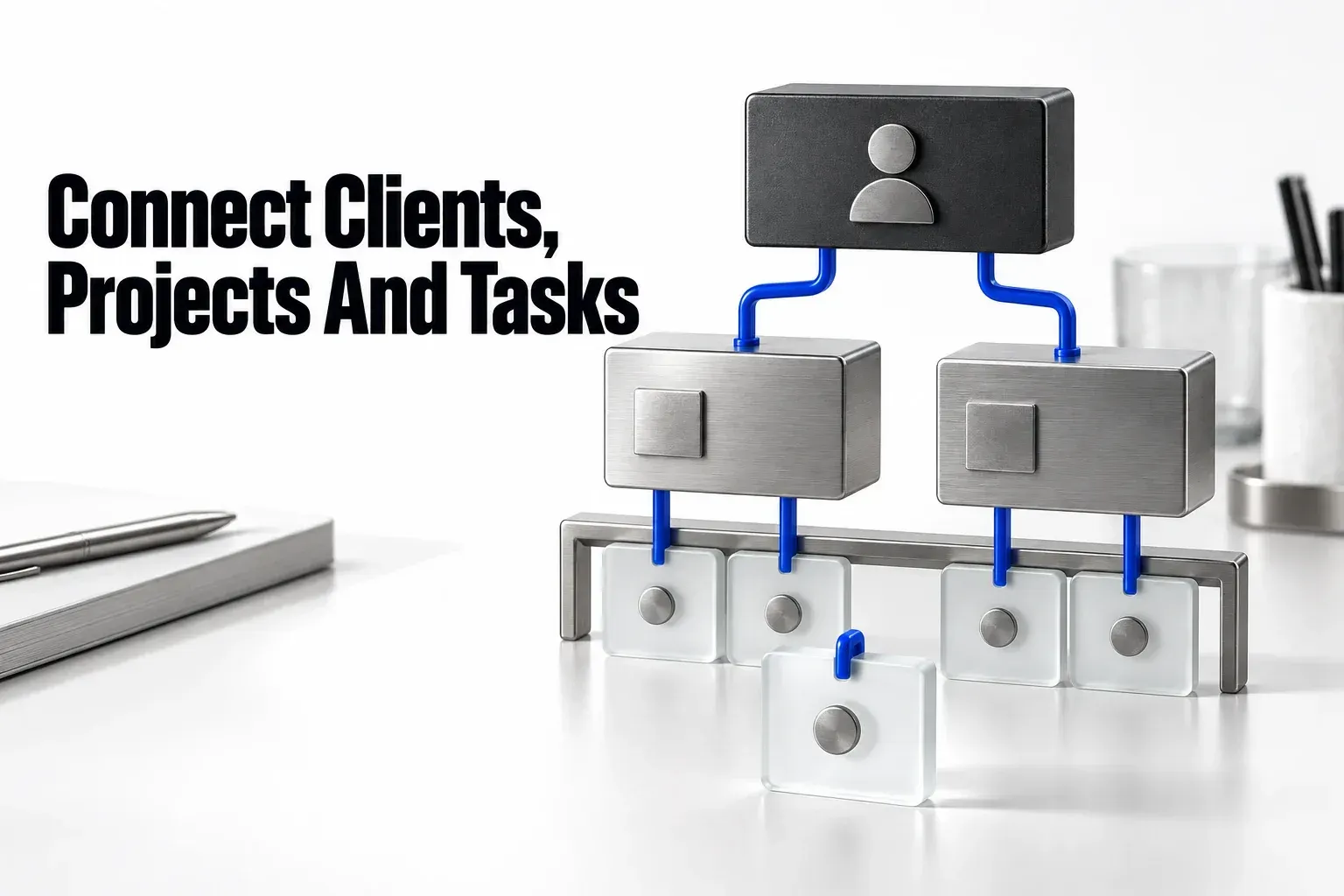
Create the two relations after all three databases exist. Notion’s relation settings support a reciprocal property and a one-page limit, which suit this model.
- In Projects, add a property named Client. Choose Relation and select Clients.
- Turn on Show on Clients and name the corresponding property Projects. Select Add relation.
- Set the Projects database’s Client relation limit to 1 page. Keep the reciprocal Clients database’s Projects relation at No limit: one client can have several projects.
- In Tasks, add a Project relation to Projects. Turn on Show on Projects, name the reciprocal property Tasks, and select Add relation.
- Limit each task’s Project relation to 1 page. Leave the project’s reciprocal Tasks relation at No limit.
These limits are a design decision: each project belongs to one client and each task belongs to one project. A joint engagement with several clients needs a different rule. Avoid adding a second manually maintained Client field to Tasks; the project already identifies the client, and two independently edited links can disagree.
You can leave rollups out of the first version. If a task count helps your project review, add a Projects rollup using the Tasks relation, the task title property, and Count all. It counts linked task titles; it does not measure completion or delivery readiness. Our relations and rollups guide covers the mechanics when you need more detailed summaries.

Check one example before entering real work
Use fictional records for this check: North Studio in Clients, Brand refresh in Projects, and Draft two concept directions in Tasks. Choose North Studio in the project’s Client field, then choose Brand refresh in the task’s Project field.
Open North Studio and confirm that Brand refresh appears in Projects. Open Brand refresh and confirm that the task appears in Tasks. If a reciprocal field is empty, check the destination database and the Show on… setting before adding a second relation to compensate.
Add a second project for North Studio. It should appear alongside Brand refresh in that client’s Projects relation. Then try selecting two projects for one task: the one-page limit should prevent it. Run these checks in your own workspace; the expected results follow the documented relation behavior.
Build views that lead to an action
Start with an unfiltered table in each database. Keep it available for finding records that disappear from a filtered view. Then create the following views with the + beside the existing view, or New view from the view menu on a smaller screen.
Active projects
Use a Projects table with Status is not Done. Show Project, Client, Status, Due date, and Next action; sort by Due date ascending. This is the delivery review. A project without a client or next action needs attention even if its deadline is several weeks away.
Waiting on client
Use a Projects board grouped by Status, or a table filtered to Waiting on client. Write the requested decision in Next action. “Feedback” is vague; “Approve the homepage copy by Thursday” gives you something to follow up on.
Due and overdue tasks
Use a Tasks table with two conditions joined by AND: the task is not Done, and its Due date is today or earlier. Sort by Due date ascending and show Project and Owner when relevant. This view covers actions that need attention now, rather than every unfinished task in the workspace.
Tasks needing triage
Create another Tasks table with this rule: the task is not Done AND either Project is empty OR Due date is empty. Use an advanced filter group for the OR conditions. An unlinked task needs a project; an undated task needs a scheduling decision. Some work can stay undated in a deliberate backlog, but it still needs review.
Use a Calendar view on Tasks if dates help you plan the week. Keep the triage table alongside it so unscheduled work gets attention too. Notion’s view controls let you filter, sort, group, and show different properties per view; use Save for everyone when the team should share those settings.
To put these views together on Client work, add a linked view using /linked → Linked view of data source and select the existing Projects or Tasks database. A linked view gives you another presentation of the same records. Edits to its pages and properties also affect the source, while its view filters and sorts can differ. Do not create a fresh Tasks database for every client: you would lose the shared task list this structure is meant to provide.
Check the view rules with concrete records
Use the fictional projects Brand refresh and Website launch, both belonging to North Studio. Assume today is May 10. The expected views below follow the stated filters; they are not recorded product results.
| Task | Project / Status / Due date | Expected working view |
|---|---|---|
| Draft two concept directions | Brand refresh / In progress / May 10 | Due and overdue tasks |
| Confirm brand approval | Brand refresh / To do / May 14 | Neither queue yet |
| Collect website copy | Website launch / To do / Empty | Tasks needing triage |
| Sort new inquiry | Empty / To do / May 10 | Both due and triage |
| Send accepted brief | Brand refresh / Done / May 9 | Neither working queue |
Due and triage are allowed to overlap: a task can be due today and still lack its project. Assign Sort new inquiry to the right project; it should leave triage while remaining due. Decide when to schedule Collect website copy; a future date should remove it from triage without making it due today. If a record fails either check, open the unfiltered master table and inspect its actual fields before changing filters.

Give each project a reusable brief
Inside Projects, open the dropdown beside New → + New template. Call the template Client project and add headings for Brief, Deliverables, Acceptance criteria, Decisions, and Reference links. Define what “done” means for that engagement, including who approves it.
Set Planned as the default Status for this starter model, but leave the Client relation blank in a general-purpose template. A relation filled into a database template links every page created from it to the same existing record. Selecting the client belongs to the new project’s setup.
To use it, open the dropdown beside New in Projects and choose Client project. Give the new page a unique project title, select its Client, and enter its delivery date and Next action. The brief headings should be available for you to fill with this engagement’s details. Notion documents using a template and changing the new page afterward; choosing the template does not supply the new client’s agreement.

Write the repeatable brief structure in the template. Create actual task records in Tasks and link them to the new project. A checklist in the brief and a task row are different objects; choose task rows for actions that need to appear in the shared due-date review.
Keep client access separate from internal tracking
Keep the master tracker internal until you have designed the client-facing area. A view filtered to one client is a way to organize records; its appearance does not establish what that guest can access. Linked data sources respect the original database’s permissions, and Notion applies the broadest access a person has been granted.
Choose the documents and updates the client actually needs. Before sharing real data, inspect the page, its parent, its subpages, and related records from the intended guest account. Our client portal permissions checklist handles that access review in detail. The tracker’s structure alone is not an approved client portal.
Run a weekly review you can maintain
Before replacing the fictional records, add one completed task, one unlinked task, and one unfinished task without a date. Check that the completed task leaves the due-task view, that the unlinked and undated tasks appear in triage, and that both projects still appear on the client record. Confirm filters independently in every view; they do not propagate automatically.
Treat the project’s Done status as a delivery decision. A task count tells you how many task titles are linked, not whether the client approved the work. Review the acceptance criteria and outstanding client decisions before closing the project. When an agreed deadline changes, review affected task dates and Next action explicitly rather than relying on the project’s new date to describe every task.
For the ongoing review, mark finished tasks Done, check commitments due now, decide what to do with triage items, and follow up on projects waiting for a client decision. Finish by updating each active project’s Next action. If you cannot tell what moves a project forward, another dashboard widget will not fix it.
If you later copy this setup, inspect the relation destinations and reciprocal fields in the copy before trusting it. Notion documents that duplicating an individual related database can turn its two-way relation into a one-way relation. The same documentation notes that a CSV export cannot be re-imported to re-establish database relations, so keep a distinction between exported rows and a reusable workspace structure.