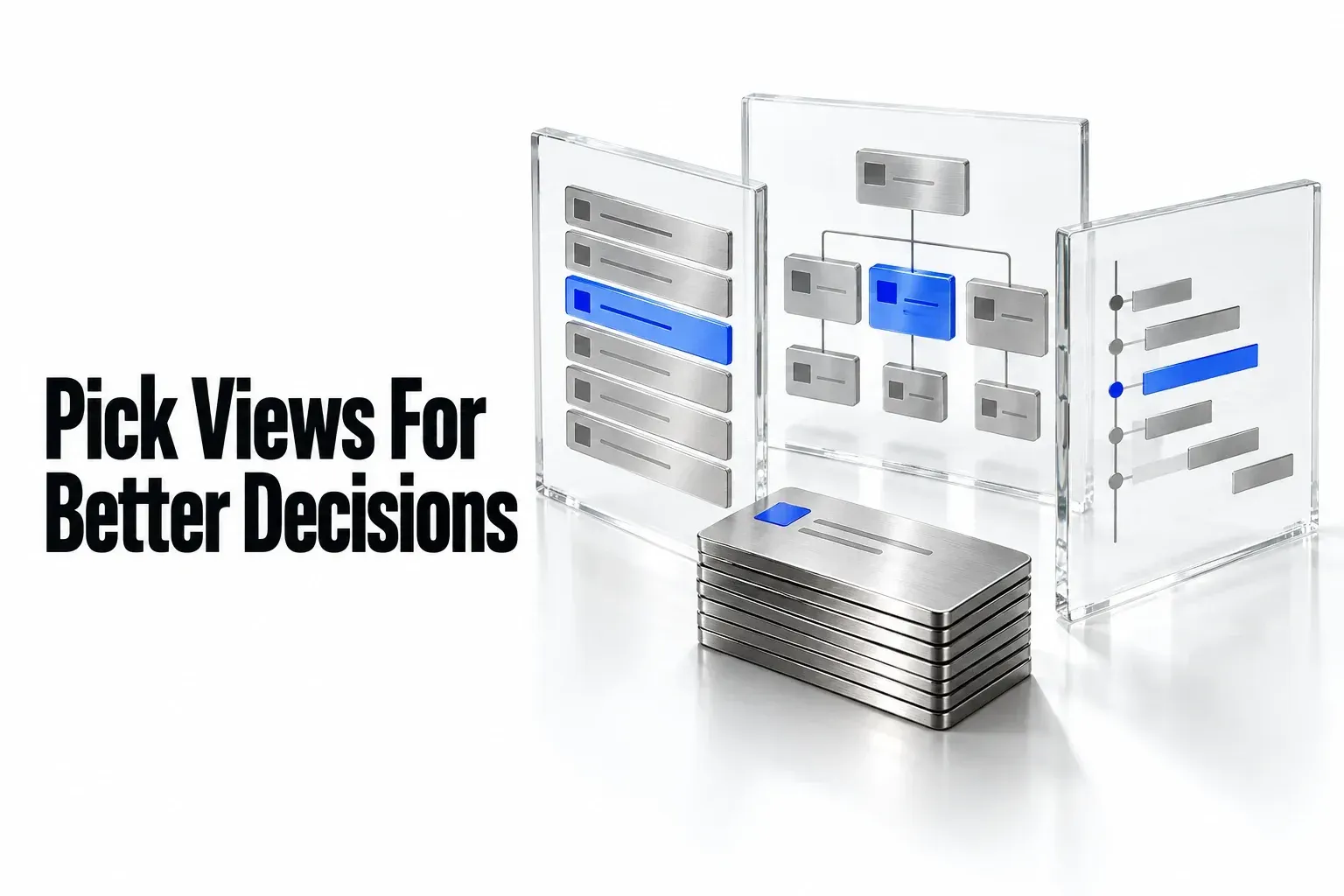
For client work, start with a Table to check the records, a Board to follow stages, a Calendar to see deadlines, or a Timeline to compare work periods. Use a List for a compact queue and a Gallery when images help you recognize the right item. Add a Chart when you need a defined summary, a Form when you need submissions, and a Dashboard when several review questions belong together.
I would choose the view from the decision you need to make. “What needs client approval?” is a better starting point than “Which layout looks best?” A useful view makes the next action clear.
A view changes the presentation, not the records
A Notion database contains one or more data sources, each made up of pages. You can link an existing data source into another database instead of creating another set of records. Views give those records different layouts, filters, sorts, and groups.
The distinction matters when you edit. In a linked source, changing a page or property changes the original source too. Creating or adjusting the linked view’s filters, sorts, and groups leaves the original database’s views alone. A client project page can therefore show the relevant tasks without maintaining a second task list.
Each view has its own settings. A filter selects which records are shown; a sort changes their order; a group organizes them by a property. Property visibility chooses which fields appear in that view. These are separate choices from the layout.
Choose the layout by the question
Notion’s database layouts present records as rows, cards, dates, or summaries. For a small client workflow, I would match the view to the question the team needs to answer.
| Question | Starting view | Information to check |
|---|---|---|
| Which records need fixing? | Table | Show the fields you need to compare, such as Project, Owner, Status, and Due. |
| What stage is each deliverable in? | Board | Group by Status; show the owner and deadline on each card. |
| What is due on each date? | Calendar | Use the intended Date property, such as Due, rather than an unrelated date. |
| Which work periods overlap? | Timeline | Use a meaningful date range, or configure separate start and end date properties. |
| What should I open or act on next? | List | Keep the title and a few useful fields in a compact queue. |
| Which visual asset or concept is this? | Gallery | Use page content or a Files & media property with useful images. |
| How many items meet a defined condition? | Chart | Define the filtered records, grouping, calculation, and action the result should prompt. |
A Table is a database layout: each row opens as a page, with properties in columns. A simple table used to arrange plain text does not provide those database filters, sorts, or property values. If you need several views of the same work, choose a database.
Keep dates honest. A Calendar answers when an item is due; a Timeline makes its duration visible. In Timeline settings, Show timeline by selects the date property or separate start and end properties. A bar showing a work period does not establish how many hours someone will spend on it. Keep an undated queue instead of adding placeholder dates just to populate a visual layout.
Give one project a few useful views
Consider a hypothetical brand-refresh project with logo concepts, a presentation, and social assets. Its task records could have Title, Relation, Person, Status, and Date properties named Task, Project, Owner, Status, Due, and Work period. Those names are proposed choices; Due is a deadline, while Work period holds the range used for scheduling.
Check the view rules with a few sample records. For Brand refresh, “Logo concepts” belongs to Maya, is Ready for review, is due October 22, and has a Work period of October 19–21. “Presentation” belongs to Leo, is In progress, is due October 23, and has a Work period of October 21–23. “Social assets” belongs to Sam, is To do, and has no confirmed Due or Work period. Keep a fourth task, “Homepage copy,” linked to a different project, Website launch.
I would begin with these views of the same Tasks source:
- All project tasks — Table: filter Project to the brand refresh and show Owner, Status, Due, and Work period. Use it to find missing ownership, uncertain deadlines, or inconsistent status values.
- Review stages — Board: apply the same Project filter and group by Status. Display Owner and Due on the cards so a review item has a person and a deadline attached to it.
- Client deadlines — Calendar: apply the same Project filter and display the Due property. Keep a separate filtered Table for items whose Due value is empty.

If overlapping design phases become a real planning question, add a Timeline using Work period. If you only need to find the next task, a filtered List can be enough. I’d add other layouts only when someone needs them. There’s no benefit in building them early.
For these records, the Calendar should place Logo concepts on October 22 and Presentation on October 23. The separate undated Table should contain Social assets. A Timeline plotted by Work period instead shows October 19–21 and October 21–23; it answers a different question with the same records. If Homepage copy appears in any of these project views, check the Project filter before changing the task.

Moving work through a Board grouped by Status changes the task’s stage; it is not a separate copy of the task. Define what “Ready for review” and “Done” mean before using those options. A client comment, a requested revision, and accepted delivery should not all be treated as the same event.
If the records themselves still need a structure, the client project tracker guide explains the Clients, Projects, and Tasks model. Choose the view after deciding what each record represents.
Add a view and decide who should share its settings
Before creating or changing views in the original database, confirm that you can edit its structure and views. Can edit content allows editing records and property values, but not the database's properties, views, sorts, or filters. If construction controls are missing, ask the database owner to make the shared view or review your access.
Use the add-view controls to create another presentation of an existing database:
- Open the database containing the records you want to use.
- Select + next to the database name or existing views. On smaller screens, open the current view’s name and select New view.
- Choose the layout and name the view for its purpose.
- Open the database settings and configure Property visibility, Filter, Sort, and Group where relevant. For a dated layout, check the date field it uses.
- Decide whether the filter and sort are personal or shared. Select Save for everyone when the change should become the shared view’s configuration and your permissions allow it.
A personal filter can be useful for your own queue. A shared review needs agreed rules so the team knows what its empty or populated result means. Name the responsible person and write down the view’s purpose, such as “active tasks for this client, sorted by due date.”
Before changing the data because a view looks empty, inspect its source and filters. With several conditions, AND requires the conditions together, while OR allows alternatives. Notion also notes that sub-item visibility can affect filtered results. A hidden record is not necessarily a deleted record.
Verify the view with known records
Open each sample record by name in the source, then compare the view against the rules you intended. With a Brand refresh filter, the three related tasks belong in the Table and Board; Homepage copy does not. If the view is only for work awaiting review, combine Project is Brand refresh AND Status is Ready for review. Using OR would also admit matching statuses from other projects or other statuses from Brand refresh. This is a selection check, not an access boundary.
- The whole view is blank: confirm the intended source is linked, then inspect the complete filter groups. Temporarily simplify a personal diagnostic view to one known Project condition; do not overwrite the team's shared filter merely to troubleshoot.
- One known task is missing: open it in the source and compare its actual Project, Status, and chosen date field with the view rules. Check sub-item visibility if the task is a sub-item.
- A teammate sees different results: distinguish a personal filter from the shared configuration and inspect their access to the source. A view saved for everyone cannot supply missing database access.
Once the known records behave as intended, save the agreed shared configuration where permitted. With the rules verified, an empty review queue means no accessible records match them. It doesn’t prove every project record is complete, or that the client can see the same view.
Use a Chart for a question you can define
“Count active tasks by Status” is a useful chart specification. “Show progress” is incomplete until you decide which records count, what the measure means, and who responds to it. A task count is not a measure of effort: one design task and one small correction each count as one item.
Notion Charts allow one chart on Free and unlimited charts on paid plans. You can’t edit database entries directly from Chart view, so keep a Table or another editing view available. Before you interpret a total, check filters, hidden groups, and whether sub-items are included. If subtasks don’t show up in the chart, Notion’s chart documentation points to a flattened-list sub-item setting.
If the measure depends on a rollup, check compatibility first. Bar and line chart axes can’t use rollups directly, and some other property types aren’t supported there either.
Forms collect records; Dashboards combine review views
A Form serves a different stage of the workflow. Its questions connect to database properties and its responses become records. Members on all plans can create forms, and you can build and customize them on web and desktop. Adding a Form to an existing database requires Full access to that database. Choose it for new client intake. The form collects the submission; you still decide who reviews it and what happens next.
Forms must be added to the original database containing the data source, rather than a database that merely links to it. If Form is missing from the view picker, check whether the source appears under Linked in Manage data sources. A publicly shared form can accept responses from nonusers; it does not serve as a portal for browsing existing client records.
The named Dashboard view is available on Business and Enterprise. Its widgets can combine views from one or more databases. Use it when several established review questions should be visible together, such as upcoming deadlines and work waiting for approval.
You can also arrange inline database views on an ordinary page alongside notes and other content. That freeform page and the named Dashboard view have different layouts and requirements. I would use a simple page with the necessary views before paying for a dedicated Dashboard layout alone.
A client-specific view still needs client-specific access
A filter for one client and a hidden internal-cost column organize a view. They do not replace access controls. Linked data sources respect the original database’s access, and sharing the page that contains one does not supply access to the original database.
Notion provides separate database property access rules on Business and Enterprise. Those rules control what someone can see or change, unlike ordinary Property visibility. A view that filters, sorts, or groups by a column a person cannot see may not open for them. Choose client-facing view rules that match the client’s actual access.
Before sharing sensitive work, check what the intended guest account can see. The client-portal permissions guide covers that access design. Keep the view’s purpose simple: a known set of records, enough information to make the decision, and an obvious action when something needs attention.