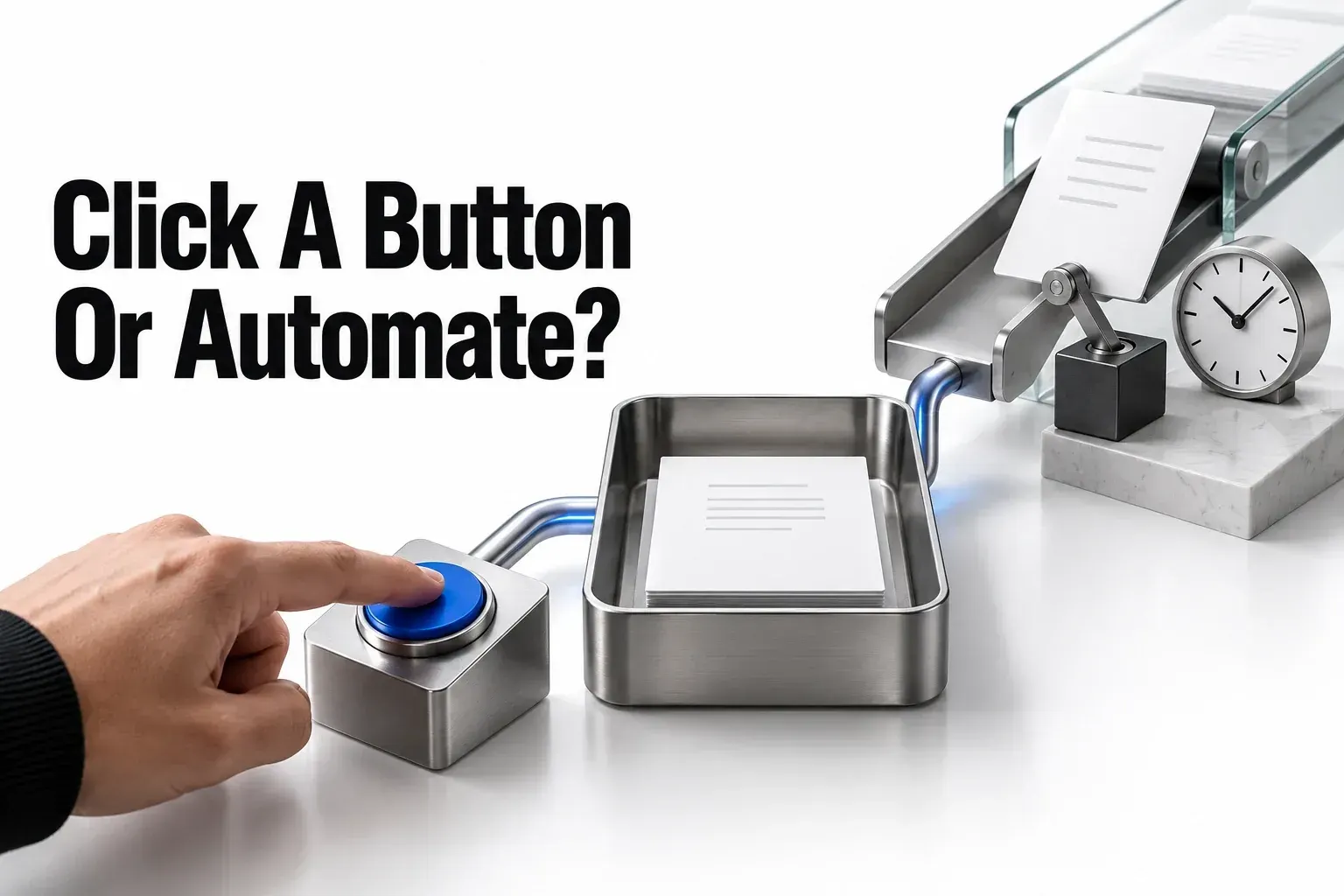
Choose a Notion button when a person should decide that an action is ready to happen. Choose a database automation when a new record, a property change, or a schedule should start the action. Both can create pages or update database records; the deciding factor is the event that should start the work.
There are two kinds of button to consider. A button block lives on a page. A database button is a property with a button for each record. Notion's guide to the three automation types distinguishes both from rules that run in the background.
Choose the starting event
| The work should start when… | Choose | Reason |
|---|---|---|
| Someone approves one project or finishes one task | Database button | The button sits on the record and can act on This page. |
| Someone creates a meeting agenda or captures a task from a dashboard | Button block | The button lives at the point of use; it can insert page content or add a database page. |
| A record is added or a property is changed | Database automation | The database event starts the rule without a separate button click. |
| A scheduled time arrives | Recurring database automation | Every {frequency} starts the rule on the configured schedule, subject to its action limits. |
The event choices come from Notion's documented automation triggers. The location matters too: a button beside a project can make the intended record clear, while a dashboard button may need a deliberately selected database and filter.
Say a project needs review before handoff. I'd use an Approve handoff button if someone has to check the deliverables first, because the click records that person's decision. Changing a status to Ready can start the automation instead, once the team agrees that this status already means the review is complete. The rule can respond to a recorded decision; it can't make that decision for the team.
Choose the button location and target
Use a database Button property for a repeatable action on a particular record. Add it through the database's properties menu, choose Button, then configure its actions. A button can edit This page, act on a newly created page, or edit a filtered set of pages in another database. Those targets are distinct choices in Notion's database button setup.
A button block suits work started from a document or dashboard. Type /button on the page. Its Insert blocks action can add a reusable agenda to that page; Add page to can create a record in a chosen database. Notion's page button actions also include Show confirmation. Place that step before actions that change records, so the person can cancel before those changes begin.
Before choosing either location, name the records the action should affect. A button on a project does not make every action automatically target that project. Check the configured target and any filter. If an action creates pages, a repeated click can create another set; a confirmation helps prevent accidental clicks but does not establish a rule against duplicates.
Define one small action before choosing the mechanism
Consider an educational Projects database with a Select property named Handoff stage and an existing option Ready. The record is Website launch. The desired decision is “Someone has reviewed this project and accepts its handoff.” Use a database button when that person should make the decision on the record:
- Open slider icon → Edit properties → New property → Button. Label it “Approve handoff,” then select Edit automation.
- Add Show confirmation before the modifying action. Say which record change is about to happen.
- Add Edit pages in and choose This page. Set the Handoff stage property to the existing Ready option. Check that the target is the current project, then select Save.
Notion documents the button-property creation controls and the This page target and confirmation step; the property name and handoff decision are yours to change. The button records a reviewer's decision. It doesn't check the deliverables, so someone still has to review them before clicking.

Use a database automation instead when changing that property is already the team's agreed approval signal. In a paid workspace where you're allowed to create automations, open ⚡ → New automation → New trigger → Property edited. Select Handoff stage and the specific change to Ready, then add New action → Send notification to for the responsible workspace reviewer. Before you select Create, check whether the rule covers the whole database or a deliberate view. Those are the documented creation, trigger, notification, and scope controls.
I'd pick one approval signal per record: either a separate click or a property change that already expresses the decision. Don't add a second confirmation ritual just because both mechanisms are available. If you do combine a button with a receiving rule, write down which one performs the record change and which performs the follow-up, so you don't configure the same follow-up twice.
Check the plan and the person using it
Buttons are available on all plans, but individual actions have plan requirements. For page buttons, Send mail to and Send webhook require a paid plan; Send Slack notification to requires Plus, Business, or Enterprise. Notion lists these conditions beside the relevant button actions. A free button is not a promise that every step inside it is free.
A database button allows people with Full access, Can edit, or Can edit content to click it. Creating or editing the button requires Full access or Can edit. Those separate levels, documented in database button permissions, can let a teammate perform an action without changing its configuration. Actions that add or edit other databases still need the relevant target permissions.
A page button requires Full access or Can edit on its page. If it adds or edits a database page, the person clicking must also be an editor of the target database. Opening another page requires permission to view that page. These are the permission rules for page buttons, not a reason to give a client broad access to an internal database.
Most database automations require a paid plan. Creating, editing, or deleting paid-plan automations requires full access to the database, and guests cannot create them even with full access. Free Plan users can create Slack notification automations, but no other kinds, and can use existing template automations without editing them. Only the creator can edit a Slack automation. Notion's automation access rules distinguish using a workflow from maintaining it.
If a client has to start the work, settle what they're permitted to do before you pick the interface. I'd keep internal updates with a team member whenever letting the client run them would require access to unrelated project data.
Combine only supported triggers
A user-clicked button can start a database automation. Notion gives the example of a button creating a page that then triggers a database rule. A database automation creating that same page does not trigger another automation, and neither does a repeating template. These are explicit limits on automation chains.

So a supported chain can start with a deliberate approval click: the button creates a record, and the receiving database responds to Page added. Check that the receiving rule watches that database and that its access and view conditions fit the new record. When the workflow starts automatically, keep the final actions together in one automation, since a page created by an automation won't trigger another automation. If the failure specifically follows a repeating template, use the narrower repeating-template trigger diagnosis.
A schedule has another limit: Every {frequency} cannot be combined with another trigger type and does not support the Edit property action. The recurring trigger documentation covers both restrictions. Choose the supported action and target before committing to a schedule; for the separate question of creating recurring tasks, see schedule-based and completion-based task repeats.
Verify the intended result before using live records
Try it first on harmless sample content in the workspace and plan you'll use. For a manual workflow, test it with the person who'll click it; for an event rule, make the triggering change by hand. Then compare the outcome with a short written expectation:
- The correct record, or filtered set of records, changed.
- Page creation produced the intended number of new records.
- A confirmation placed before the modifying actions stopped those actions when cancelled.
- The workflow remains appropriate if the button is clicked again or the status is changed again.
For the example button, the expected target is Website launch and the expected property is Handoff stage = Ready. Another project should stay unchanged, and cancelling the first confirmation should leave that property as it was. For the event route, a user's deliberate change to Ready should start the configured notification; just opening the project shouldn't. Check the recipient and connection separately from the record change.
If the workflow previously worked and then fails, Notion’s button-error guidance identifies missing target databases, removed properties, and invalid Gmail or Slack connections. Inspect the broken action’s dependency before rebuilding the entire workflow. A replaced database with the same name is still a different target; verify its identity before reconnecting it.
For an automation scoped to a view, the page must still match that view when the trigger occurs. A locked database or restricted page can also prevent the rule from running, as Notion explains in its automation troubleshooting guidance. Resolve those conditions before changing the workflow to a different trigger. Keep the chosen trigger, target, and responsible person beside the workflow so the next edit preserves the original decision.