A useful Notion project dashboard gives your weekly review a short list of decisions: repair late work, confirm upcoming commitments, chase a blocked decision, and fill the gaps that hide work from your views. Keep those queues connected to your existing project and task records.
I'd start with a normal page and linked database views, because that leaves room for a review note next to them. Add a dedicated Dashboard view when its reusable layout helps the team. A polished chart can wait; an unowned task can't.
Choose a page with linked views or a Dashboard view
You can arrange inline database views on a normal page alongside notes and headings. Notion's separate Dashboard view is available on Business and Enterprise; it brings database views into widgets with a shared layout. It supports up to four widgets per row and twelve in total. Those are product limits, not a target for your review.
Choose the normal page if you want room for a review note and a flexible arrangement of databases. Choose Dashboard view if editors need a stable layout that separates designing the dashboard from using it. The same review questions work in either format.
Keep one set of project and task records
Use the sources you already maintain. If you need a starting structure, this is a small educational model for client projects:
| Source | Properties and purpose |
|---|---|
| Projects | Project title; Status; Owner (Person); Client (Text, or an existing client relation); Next action (Text). Use a project deadline only if it represents a real commitment. |
| Tasks | Task title; Project (Relation to Projects); Status; Owner (Person); Due date (Date). For the date recipe below, use a single date with Include time and End date turned off. |
In this model, Done is the final status. Projects may also use Review and Waiting to identify decisions outside the current task owner's control. Adapt those names to your actual workflow; include every completed or cancelled status in your exclusion rules if your database has more than one.
Notion's property types distinguish dates, people, text, and relations. A relation connects the task to a project; it does not replace a task owner or a next action. If you still need the underlying records, start with the client project tracker structure before building the dashboard.
Check your permissions before you build. You need to edit the review page to place its headings and linked views, and you need to change the source database's structure if you're adding properties such as Coming week. Can edit content lets you edit records and their values, but not add or change database properties. Creating and arranging a named Dashboard view also requires edit access to its underlying database. If those controls are missing, ask the database owner to create the required property or view, or review your access.
On the review page, type /database, choose Link to existing data source, and select your Tasks or Projects source. Repeat for the panels you need. With a dedicated Dashboard view, add a view to a database, select Dashboard, then add widgets showing the relevant views.
A linked view lets you edit the same records. Changes to its pages and property values affect the original source, while the linked view's own filters, sorts, and groups can differ. Update the real task from the review queue instead of copying it into a separate weekly list.
Make each panel lead to a decision
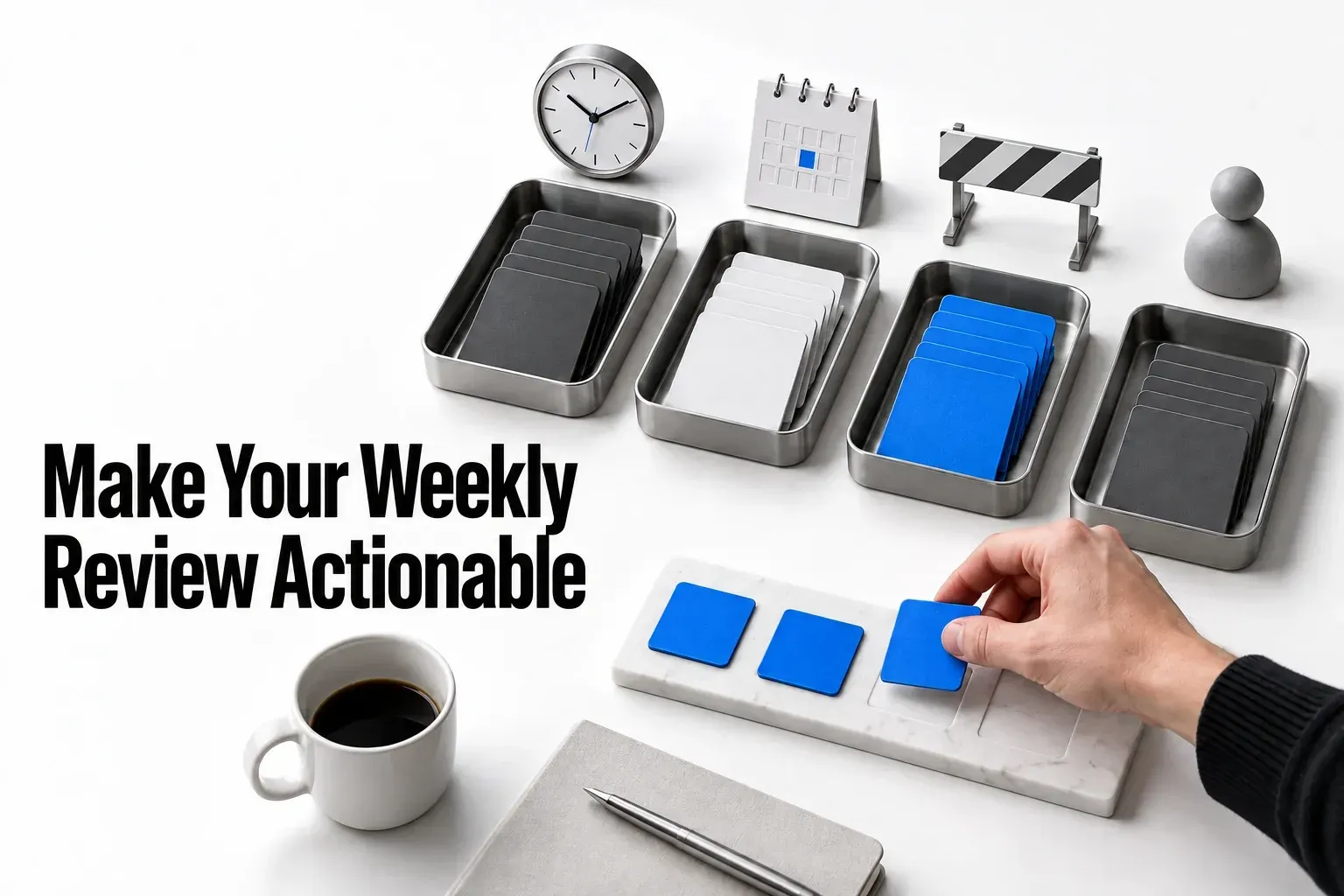
Start with these four panels. You'll build each one yourself; the rules below spell out which records belong in it.
| Panel | Include | Review action |
|---|---|---|
| Overdue tasks | Tasks where Status is not Done, Due date is not empty, and Due date is before today. Sort by Due date ascending. | Finish, reassign, renegotiate, or explicitly drop the commitment. Do not simply move every late date forward. |
| Coming seven days | Tasks where Status is not Done and the Coming week formula below is true. Sort by Due date ascending. | Confirm the owner and the work that can fit alongside the overdue queue. |
| Waiting for a decision | Projects where Status is Review or Status is Waiting. | Write the specific decision in Next action and identify who should make it. |
| Missing next actions | Projects where Status is not Done and Next action is empty. | Name a concrete action, or deliberately pause the project rather than leaving an unexplained blank. |
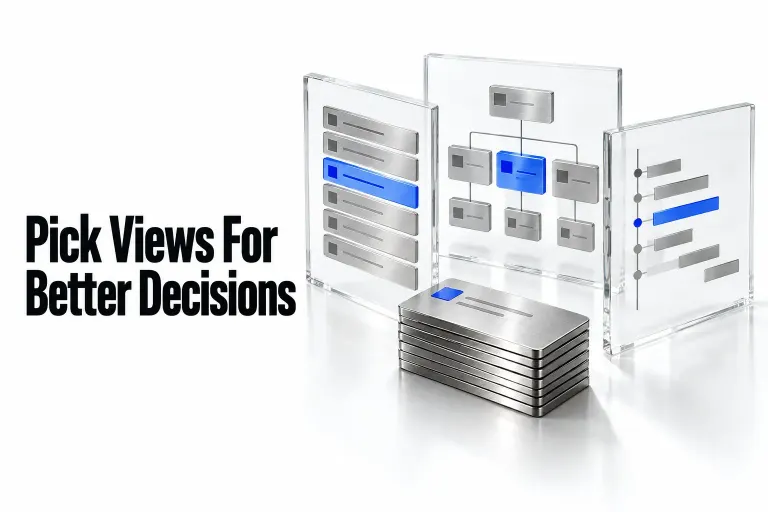
Show the fields needed to act: title, project or client, owner, due date, and next action where relevant. A compact table makes gaps easy to compare. If you prefer a board for the decision queue, keep the same eligibility rules. Our guide to choosing a database view covers the layout decision in more detail.

Open each view's settings and choose Filter. Use Add advanced filter when you need grouped conditions. Notion supports AND and OR filter groups: the waiting panel needs Review or Waiting, while the overdue panel needs all its conditions. Use Save for everyone for shared filters and sorts when you have the required editing access.
Define the week instead of relying on its label
Here, Coming seven days means today and the following six calendar dates. If today is October 13, include October 13 through October 19; exclude October 20. It is a rolling window, not the next Monday-to-Sunday week.

Create a Formula property named Coming week in Tasks and give it this formula, built from Notion's documented date and Boolean functions:
if(
  empty(prop("Due date")),
  false,
  and(
    prop("Due date") >= today(),
    prop("Due date") < dateAdd(today(), 7, "days")
  )
)
today() returns the current date without the time. The empty branch returns false; the remaining expression includes today and excludes the seventh date after today. Filter the panel to true. Use your exact property name and confirm that the formula editor accepts it.
This recipe is for single, date-only deadlines. If you store timestamps or date ranges, decide which instant or range endpoint counts as the deadline and how your team handles timezones before adapting it. Do not silently apply a day-based review rule to time-critical deliveries.
Check what the panels can hide
Keep a small data-gap view of unfinished Tasks where any of Due date, Owner, or Project is empty. Use an outer AND group for Status is not Done and an inner OR group for the missing fields. An undated task cannot appear in either date queue, so an empty overdue panel does not prove that the plan is complete.
Before relying on the dashboard, inspect representative records in your own workspace: an unfinished task due yesterday, one due today, one due six days from today, one due seven days from today, an undated task, and a completed task. Check the source record against the intended panel rules.
| Sample record | Overdue | Coming seven days |
|---|---|---|
| Unfinished; due October 12 | Yes | No |
| Unfinished; due October 13 | No | Yes |
| Unfinished; due October 19 | No | Yes |
| Unfinished; due October 20 | No | No |
| Unfinished; no Due date | No | No; include in the data-gap view |
| Done; due October 12 | No | No |
| Done; due October 13 | No | No, even though Coming week is true |
That last row tests the whole view. Its Coming week formula is true, yet the Status rule correctly keeps the task out of the panel. Assume the dated sample tasks have an Owner and Project so you can check one condition at a time. Separately try an unfinished task with no Owner, then one with no Project; both belong in the data-gap view even if their Due date is valid.

If a case lands in the wrong panel, open the source record and compare its actual values with the full filter group. Check the exact Formula property name and date-only assumptions, then look for a local or global filter changing the panel. Correct the rule or the inaccurate record deliberately; moving the date to make the dashboard look tidy defeats the review.
Check access too. Sharing the page containing a linked source does not grant access to the original database. On Business and Enterprise, page-level rules can let someone work with permitted records through a linked view even when they cannot open the source database. Dashboard views also follow the underlying database permissions. A view filter organizes records; don't rely on it as a client-access boundary. Keep this team review private unless you've designed the sharing scope; use the client portal permissions guide for that separate task.
In a dedicated Dashboard view, filters changed in View mode are local unless an editor saves them for everybody. Its global filters affect only widgets whose views include the relevant property. Inspect each panel after applying a global filter instead of assuming every source received the same restriction.
Finish the review with a smaller, clearer plan
- Repair the gaps. Give undated or unowned tasks a deliberate disposition before trusting the date panels.
- Resolve overdue work. Record the changed commitment or the reason for dropping it.
- Unblock decisions. Replace “waiting” with a named question and the next follow-up.
- Choose the coming week's commitments. Confirm owners and dates after considering unfinished work.
- Write a dated review note. Record what finished, what changed, and one adjustment for the next week. Link to the relevant records rather than copying the whole task list.
For example, a review note might read: “October 13: Landing-page copy is late. Maya will ask the client today whether delivery can move to October 15; the current commitment stays October 12 until confirmed. Leo will seek approval of the logo version by October 16. Social assets has no owner or date; Sam will decide whether to assign it or pause it.” Link each statement to its source record. After agreement, update the task's real owner, date, or status there. The note records a decision and follow-up, not a second independently maintained schedule.
The relative date queues keep moving; a “last reviewed” date does not freeze their contents. Keep retrospective comments in the note and actionable facts in the source records.
Remove panels that do not change a decision. Notion recommends focused, filtered widgets instead of large unfiltered views to reduce dashboard load. The next useful improvement is usually better ownership or a clearer next action, not another metric.