By
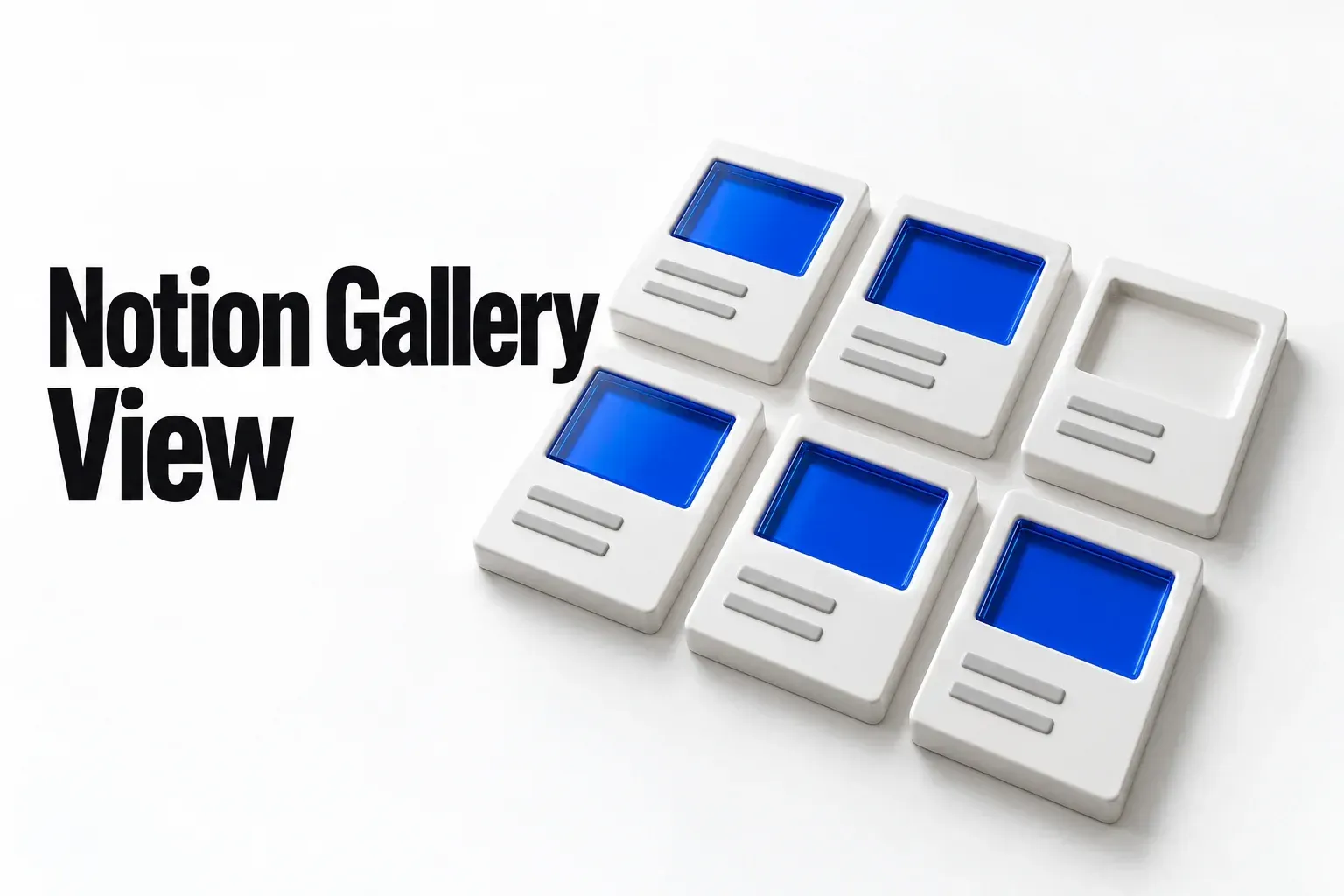
A Notion gallery view shows each database page as a card, and one view setting decides which image sits on top: Card preview. Add the view with + next to the view name → Gallery, or type /Gallery view on any page. Then open the view settings → Layout → Card preview and pick Page cover, Page content or a Files & media property. I'd choose that image source before adding a single picture, because a blank or wrong card usually means the image lives where the preview isn't looking.
For a mood board or portfolio, choose Page cover with large cards. For a team directory or a client asset library, choose a Files & media property such as Photo, which you can fill straight from a table. For recipes, screenshots or notes where every page already opens with its main image, Page content is enough. The exact settings for all three are in the setups section further down.
How to create a gallery view in Notion
Pick the route by where your records live now. Notion's gallery help lists three:
- New full-page gallery: create a new page, then under Get started with, click ••• and then Gallery.
- Inline gallery on a page you already have: type
/Gallery viewand press Enter. - Existing database: click + next to the database name or the current view name, then select Gallery.
I'd use the third route whenever the records already exist. The gallery becomes one more view of the same pages, and Notion's view settings note says each database view has its own settings, so the card setup you build here won't change the table, board or calendar you already rely on.
If the database sits on another page, Notion lets you link a view of it where you want the gallery; switch that linked view to Gallery. The cards are the source database's own pages, which matters the first time someone edits one; what an edit in a linked database changes in the original covers that question.
Which image does a gallery card show?
The one Card preview points at, and you set it per view: open the view settings (••• at the top right of the database) → Layout → Card preview. Each option reads from a different place in the page. A card goes blank, or shows the wrong thing, when the image sits somewhere else.
| Card preview | What the card shows | Where the image goes | When it breaks |
|---|---|---|---|
| Page cover | The image chosen as that page's cover | Add cover at the top of each page, then Change cover → Upload, Link or Unsplash | A page has no cover, or its picture was placed in the page body |
| Page content | A preview of the page's first block; an image or video there shows as the picture | An image block as the very first block of the page | Someone adds a line of text above the image, and the card previews that text |
| Files & media property, such as Photo | The image files uploaded to that property | The property field: upload, paste a link, or drag a file in | The property is empty on that page |
The Files & media option appears in the Card preview menu under the property's own name once the database has one. Covers come from Add cover: hover over the cover, choose Change cover, then upload your own image, paste an image URL with Link, or search Unsplash. A Files & media field, per Notion's property help, takes an upload, a pasted link to embed a file, or a file dragged in from your computer. Notion's image help adds the quickest route: “Drag an image file into a card on a database board, or into a Files & media property cell in a table, or into a gallery.”
A record doesn't need an image to appear. Notion's view help says you can point a gallery at images in a Files & media property, and “otherwise, the gallery will show any content that the database page contains,” so a page with no picture still gets a card, just a text one. Several gallery guides, Notionland's and Super's among them, also describe a None option that hides images and leaves only the properties; if every card in a view turns text-only at once, check Card preview before anything else.
My default is a Files & media property named Photo for anything that works as a directory or a library. The image stays apart from the page's writing, so nobody breaks a card by adding a note at the top, and you can fill the whole column from a table view in one sitting. Page cover is the right call for mood boards and portfolios, where the cover is the content. Page content I'd keep for databases where every page already opens with its picture, such as recipes or screenshots, and only while everyone adding pages knows the image has to stay first.
Notion only reads the spot you point it at. Deciding where images live, and telling everyone who adds records, stays with you; a short note beside the database saves a round of blank cards later.

What image size works on gallery cards?
Upload images at least 1,500 px wide, keep one aspect ratio across the database, and keep the subject near the middle of the frame. That's where the published advice lands once you line it up, even though the guides disagree on shape.
| Source | Size | Aspect ratio | What it covers |
|---|---|---|---|
| Notion help | At least 1,500 px wide | None given | Page covers |
| Super | 1500 × 600 px | 5:2 | Gallery cover image |
| Notionland | 1500 × 600 px | 5:2 | Cover image in a gallery |
| Pictey | 800 × 600 px minimum | 4:3 preferred | Database gallery |
| ones.com | 1000–1500 px wide | 16:9 or 4:3 | Gallery view images |
Across the four independent guides, the ratio advice splits three ways. Super's gallery guide calls 1500 × 600 px ideal and says any 5:2 image should work, and Notionland's gallery guide gives the same 1500 × 600 px at 5:2. Pictey's Notion image guide sets an 800 × 600 px minimum for a database gallery with 4:3 preferred, while ones.com's image-size article suggests 16:9 or 4:3 at 1000 to 1500 px wide, citing “extensive testing and user feedback” without showing the method. That's 5:2 twice, 4:3 twice and 16:9 once.
Widths agree far more than ratios. They run from 800 to 1,500 px, and the median of each source's headline width is 1,500 px across all five, whichever end of the ones.com band you count. Notion's cover-image advice is the floor I'd build on: covers are “dynamic depending on the width of your window, so there's no specific size that works best,” and Notion recommends “images at least 1,500 pixels wide.”
The two 5:2 picks describe banner proportions; Pictey's own size table lists a page cover at 1500 × 600 px, 2.5:1. That suits a Page cover gallery, where the same image also heads each page. For a directory or a library, the exact ratio matters less than keeping it identical across records.
Notion publishes no pixel size for small, medium or large cards, and its cover advice ties the visible area to window width, so build for the crop rather than for one perfect size:
- Width: 1,500 px or more, which meets Notion's number and every recommendation in the table.
- Ratio: one ratio for every image in the database. Pictey's advice is to use the same aspect ratio for all images and set the gallery to fit mode.
- Framing: the subject near the middle; Pictey's cover tip is to keep important content “in the center third of the image.”
- Fit image: off when every image shares a ratio, on when they don't, as with logos, screenshots and posters.
- File size: under 5 MB per image, on any plan.
That 5 MB rule comes from Notion's file limits. On the Free Plan, “all files you upload must be under 5MB.” On paid plans the same page's FAQ allows uploads of up to 5 GB per file, but its note still keeps PNG and JPG images under 5 MB. If Notion reports that an image is too large to be displayed, its help suggests uploading the image as a file instead; for a card picture, I'd upload a smaller copy. Format rarely needs converting: the supported list includes HEIC, ICO, JPEG, JPG, PNG, TIF, TIFF, GIF, SVG and WEBP.
Set card size, Fit image and Reposition
Card size and Fit image both sit under Layout in the view settings, and Reposition works on each card by hover. Between them they decide whether a gallery reads as a tidy grid or a patchwork.
Card size
Notion's gallery guide names the three choices: small, medium or large. Large lets the image carry the record on its own; small fits more cards in a row when people scan by name and tag. I'd start at medium and change it only after the images and properties are in, because the right size depends on how much text sits under each picture.
Fit image and Reposition
Notion's gallery help describes both states. With Fit image off, “the image will be cropped to fill the entire card frame,” which gives an even grid when every image shares one shape. With it on, “the entirety of the image will fit within the frame of the card,” so tall posters, logos and screenshots show whole, with empty space around them. The same help adds that you can hover over an image on a card and select Reposition to drag it into the position you want, and Super's guide uses that option to move a cropped cover around inside the card's frame.
My split: off for photos of people, places and products shot the same way, on for anything where a cropped edge loses information, such as a screenshot, a chart or a logo.

Hide Name and wrap properties
For a mood board or a photo wall, switch off Name in the view's Properties menu so the image stands alone. Notion's help calls that “Helpful for simple and elegant mood boards and photo collections.” When long values get cut off under the image, use the gallery option Notion announced to wrap all properties so info is fully visible. Organized Notebook's gallery tips put that toggle in the view's Properties menu; turn on Wrap all properties when emails, roles or titles end in an ellipsis.
Choose which properties show on cards
Open the view settings → Property visibility, click the eye icon next to a property to show or hide it, and drag ⋮⋮ to set the order it takes on the card. I'd show two to four properties, the ones that let someone recognize a record without opening it: role and team in a directory, type and date in a library, status where work moves through stages. Everything else stays one click away inside the page.
Gallery isn't on Notion's list of views that support conditional color; the property help names Table, Calendar, Timeline, List, Board and Feed. If state matters on a card, show the Status property as text, and keep color rules for the views that accept them, as described in setting conditional color for each database view.
Sort, filter, group and open cards
To reorder by hand, click and hold a card, then drag it left, right, up or down. For an order that follows a rule, the view settings offer Filter, Sort, Group and Sub-group per view, and a filter or sort can be saved for everyone or kept for you alone. Notion's gallery guide groups a team directory by one of the members' properties, and that's a sensible first group: Team or Department, with a Sub-group only if a second split helps someone find a person faster.
Clicking a card opens its page. Gallery layouts open pages in center peek by default; change that in Layout → Open pages in, which offers Side peek, Center peek and Full page. I'd pick Full page for records with long content, like a recipe or a case study, where a center modal gets cramped.
Placement is the last choice. To make a full-page database inline, drag it from the sidebar into another page, open that parent page, click ⋮⋮ next to the database sub-page and select Turn into inline. To go the other way, drag the inline database block into the sidebar as a top-level page. Once a shared directory's layout is right, Notion's gallery guide suggests locking the database to prevent accidental changes, and what a database lock protects compared with a page lock explains which one fits.
Three gallery setups and their settings
Notion's gallery help lists use cases such as a recipe collection, a cafe directory, a board game tracker and a mood board. Most client-work galleries fall into three patterns, and each follows from the image-source rule above.
| Setting | Mood board | Team directory | Asset or screenshot library |
|---|---|---|---|
| Card preview | Page cover | Files & media property “Photo” | Files & media property, or Page content when every page opens with its image |
| Card size | Large | Medium | Small or medium |
| Fit image | Off | Off, with each face near the middle of its photo | On |
| Name | Hidden | Shown | Shown |
| Visible properties | None, or one tag | Role, Team, Email | Type, Updated |
| Wrap all properties | Not needed | On | On if file names run long |
| Organize by | Dragging cards by hand | Group by Team | Filter by Type |
Mood board. The cover is the content, so Page cover with large cards and the Name hidden. Fit image stays off for an even wall, which only works if every cover shares one ratio and is at least 1,500 px wide.
Team directory. A Photo property survives anyone editing the bio at the top of a person's page, and you can drag every headshot into the table in one pass. Medium cards leave room for Role, Team and Email, Wrap all properties keeps long addresses readable, and headshots taken with the face near the middle survive the crop.
Asset or screenshot library. Logos, screenshots and posters come in different shapes, so Fit image goes on and nothing important is cropped away. Small or medium cards with Type and Updated visible make the grid quick to scan, and a Type filter saved for everyone gives the whole team the same view. If a client opens this library, share only the records meant for them; what to show in a Notion client portal covers where those records live and who gets in.
Gallery, board or table?
Choose a gallery when people recognize a record by its picture: a face, a cover, a screenshot. Choose a board when records move between stages and the grouping is the point; Notion's board view groups items by a property, and building a Notion kanban board covers columns and WIP limits. Choose a table when you compare or edit properties across many records, since every property gets its own column. For work tied to dates, a Notion timeline view plots each page across its dates. One database can hold all of these views at once, and choosing a Notion database view by the question it answers walks through that decision.
Add images inside a card's page
Each card has its own page, and images inside it work like images anywhere in Notion. Type /image and press Enter, then upload a file, embed one from its URL, or add a stock photo from Unsplash. To resize, hover over the image and drag one of the two black guides on its left or right edge. Hover and open ••• for Crop image, Alt text and Replace.
With the view on Page content, an image works as the card's picture only while it's the page's first block. For a link out of Notion, hover over an image and select ••• or ⋮⋮ → Add link, then paste a URL or pick a Notion page; Notion's image help notes that choosing a Notion page as the destination won't create a backlink. The card itself still opens its own page in the Open pages in mode, so an outbound link belongs on an image inside that page. For a public portfolio, publishing the page is a separate step with its own settings and limits, covered in publishing a Notion website.
Gallery cards look wrong? Check these first
- No image on one card: compare Card preview with where that page keeps its image. Page cover needs a cover, Page content needs the image as the first block, and a Files & media setting needs that property filled on this page.
- Every card shows text: Card preview points at Page content while pages open with text, or at the None setting the guides describe. Switch it to the source your images use.
- Wrong image: the view reads a different spot from the one you edited. A new cover won't show while the view uses a Photo property, and each view keeps its own Card preview.
- Faces or edges cut off: turn Fit image on for images of mixed shapes, use Reposition on that card's image, or re-crop the photo with the subject in the middle.
- Text cut off under the image: turn on Wrap all properties, or show fewer properties.
- A card is missing: check the view's filters first; finding the filter rule that hides a record walks through it. If you searched for it, database search looks at page titles and properties, so text written inside the page won't match, as why database search can't find page text explains.
- Blurry image: replace it with a version at least 1,500 px wide and under 5 MB.
Start with one view and one image rule
Set the image source first and everything else gets easier. I'd add one gallery view to the existing database, choose Files & media for directories and libraries or Page cover for mood boards, fill five records, and check the crop at the card size you want before adding the rest. Once those five look right, the remaining cards follow the same rule, and the checklist above catches the ones that don't.