By
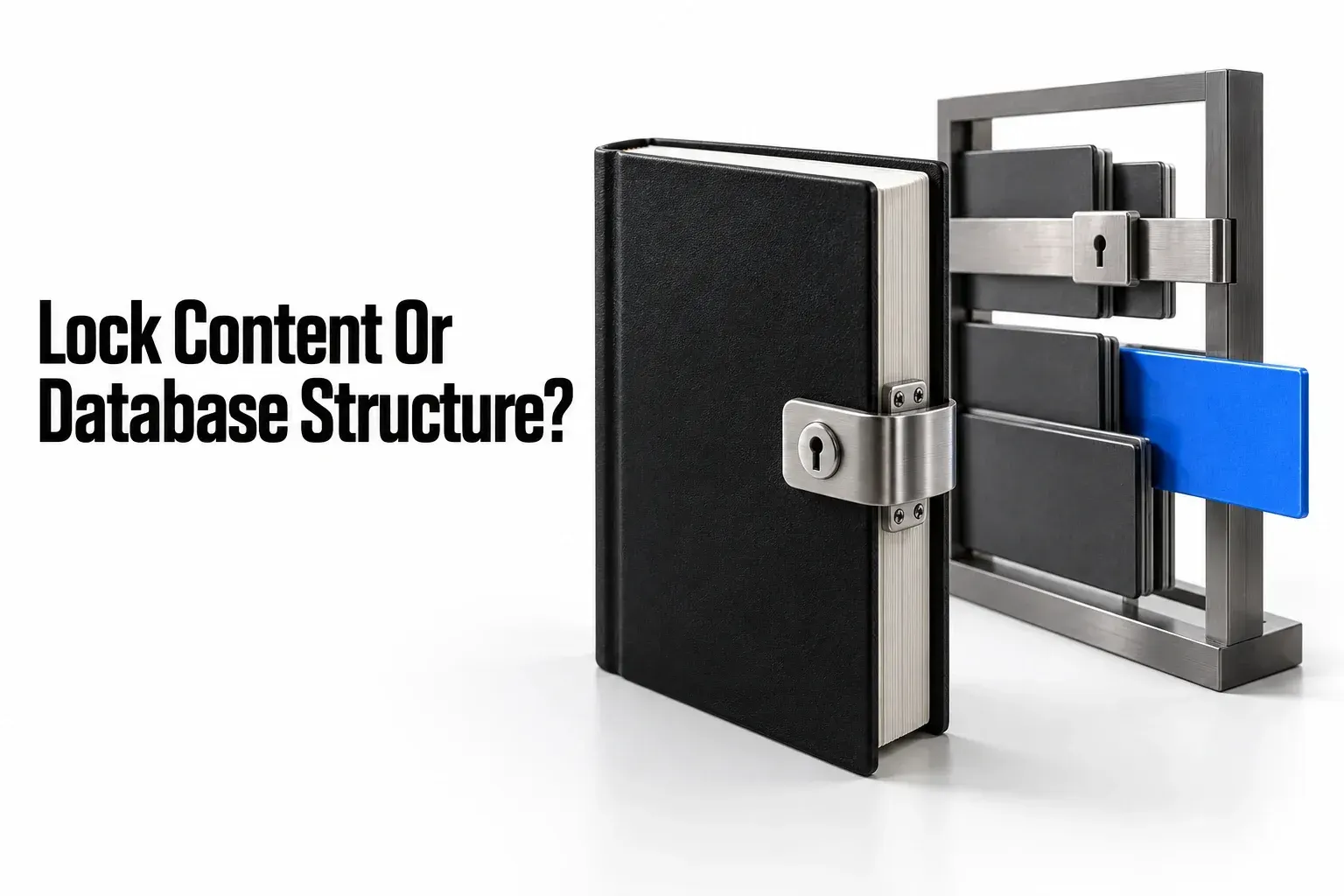
Use Lock page to make a page's content read-only until someone deliberately unlocks it. Use Lock database to protect a full-page database's views and properties while people continue updating its records.
For a teammate who should update records but never redesign the shared database, start with the Can edit content permission. A lock is useful protection against accidental edits; sharing permissions control the actions a person is allowed to take.
Compare the three controls
Choose the control that prevents the unwanted change while leaving the necessary work possible:
| Control | Protected while active | Still allowed | Important limit |
|---|---|---|---|
| Lock page | The page's content becomes read-only. | Reading the page. | A person with full or edit access can turn the lock off. |
| Lock database | The full-page database's views and properties. | Editing the data, within the person's existing permissions. | Editors who can change the database structure can toggle the lock off. Can edit content does not allow locking or unlocking. |
| Can edit content | The shared database's structure, properties, views, filters, and sorts. | Creating, editing, and deleting database pages; changing their property values. | The person can still create a linked database and edit its views, sorts, and filters. |
I'd use a page lock for a finished project brief that still needs occasional corrections. For a task tracker, I'd choose Can edit content for contributors and reserve broader editing rights for the people responsible for its structure. That avoids relying on everyone to leave a reversible lock switched on.
Check the target and your access first
Identify what you want to protect before opening a menu. A project brief is page content. A Projects table has both a shared structure—such as its Budget property and board view—and record values, such as one project's amount. If the unwanted action is changing those amounts, a database lock is the wrong control; choose the person's permission instead.
Check Share on the intended database, not just on the dashboard that contains it. The Can edit content role cannot lock or unlock a database. A contributor with that role should ask the person responsible for the structure to apply the lock. If you are looking at an inline database, use its expand control to reach the full-page database before following the steps below.
Turn on the appropriate lock
Lock page content
Open the page, select ••• at the top, and switch on Lock page. The content becomes read-only for everyone, including you. Look for Locked beside the page name in the top breadcrumb menu to confirm that the lock is active.
An editor can remove this protection through the same menu. Notion explicitly allows people with full or edit access to unlock the page, so use a read-only permission when editing must be prohibited.
Lock a database's structure
Open the full-page database, select ••• at the top right of the page, and turn on Lock database. A Locked indicator appears beside its title. People can continue editing the data, but the database's views and properties stay fixed while the lock is on.
If the database is embedded inline in a dashboard, hover over it and select the ⤡ expand control at the top to open it as a full-page database. Keep the database's menu distinct from the surrounding dashboard page's menu.

Unlock for yourself or everyone
Select Locked beside the page or database name. Choose Unlock for me when you need to make a correction while keeping it locked for other people. Choose Unlock for everyone when the shared lock needs to come off.
After a personal unlock, select Re-lock beside the name when you finish. After unlocking for everyone, return to ••• and switch on the appropriate lock again.

Set permissions for lasting restrictions
For a database contributor, open Share, find the person or group, and choose Can edit content from the access dropdown. It permits record updates without permission to change the shared structure or lock and unlock the database. This permission also allows creating and deleting records, so it is unsuitable for someone who must only read existing entries.
Choose Can view for reading only, or Can comment for feedback without content edits. Changing a lock does not turn a reader into an editor.
Check broader sharing grants too. Notion applies the broadest access a person has; a direct Can view invitation cannot restrict someone who already receives Full access through a wider workspace grant. The same principle matters when you choose Can edit content.
Check the result against your goal
| Outcome | Interpretation | Next action |
|---|---|---|
| A locked database still allows status or date changes. | The lock protects structure while data remains editable. | Keep the lock for accidental structural edits; change permissions if record edits must stop. |
| An editor unlocks the page and changes the brief. | The page lock is reversible by that editor. | Use Can view or Can comment if the person should not edit the content. |
| A contributor changes the layout of their own linked view. | Can edit content allows them to customize a linked database. | Distinguish their linked view from changes to the shared database's structure. |
Verify from the participant's account
When the goal is a permission limit, ask the participant to open the exact page or database link. Checking only from your own Full access account cannot establish what that person can do. For a database contributor, use a non-sensitive sample record to check a permitted property-value update. Under Can edit content, the expected boundary is editable records and values, with no right to change the shared structure or lock state.
Do not delete a real record to demonstrate the restriction: Can edit content permits deletion. If record deletion must be forbidden, that role does not meet the requirement. For a reader or commenter, compare the actual Share level with the intended Can view or Can comment choice; if broader rights remain, resolve the wider grant before relying on the narrower invitation.
For client information, review access to the page and its records separately from locking. A lock leaves existing viewing access in place. The client portal permissions checklist covers client-specific access, inherited grants, and direct links before you share sensitive material.