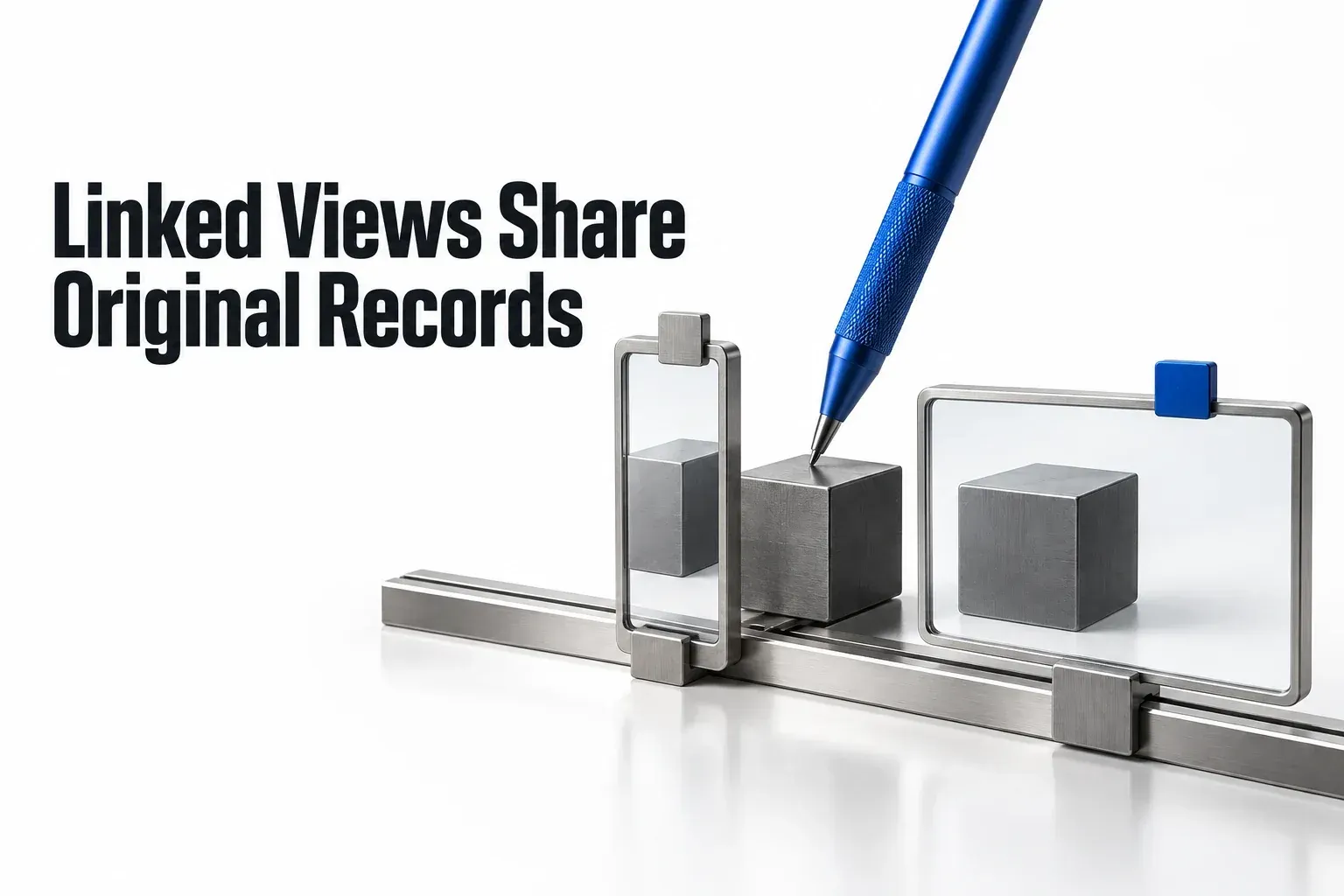
Yes. Editing a record through a linked Notion database changes the original record. Its property values and page content belong to the shared data source. The linked view can have a different layout or filter, but it is still displaying the same pages. Notion's linked-source editing rules separate changes to the source from changes to its views.
I'd use a linked view to arrange existing work on another page. Record and property edits there change the original, so start experiments with task values or the database's properties in a separate data source.
Shared edits and view settings
In Notion's current terminology, a data source holds the pages displayed by a database. A linked view points to an existing source. You can copy a view's setup without copying its records into an independent source.
| Action in the linked database | Effect on the original |
|---|---|
| Change a task's Status, due date, or other property value | The shared record changes. |
| Open a record and edit its page content | The same page changes wherever it is opened. |
| Rename the data source or edit its property definitions | The source changes, including at its original location. |
| Change the linked view's layout, filter, sort, grouping, or visible properties | That view's presentation changes; other views keep their settings. |
| Rename the view tab | The view name changes; you have not renamed the shared source. |
Notion keeps each database view's settings separate. A layout change and a data change can look deceptively similar: grouping a board by Status is a view setting, while moving a task to a different status changes that task's value.
Consider an educational example with two task pages in a source called Project tasks. A linked list on the project page uses Status is In progress; the original table has no status filter.
| Task | Before the record edit | After Draft proposal changes to Done |
|---|---|---|
| Draft proposal | In progress; visible in both views | Done in the source; absent from the linked list |
| Review brief | In progress; visible in both views | Still In progress; visible in both views |
The filter hasn't deleted Draft proposal. Its changed Status no longer meets the linked list's rule. To check a real case without touching another record, open the task from the source table, read its Status, and compare it with the linked view's View settings → Filter. Notion's filter instructions describe the rule that selects displayed pages. Before an intended status change, keep the task's link so you can reopen it if the filtered list stops showing it. If its current values still don't explain why it vanished, use the missing-task filter checks.

Check the source before editing
The page that shows a database doesn't tell you where its data lives. Before you change properties or clear records, check the connection:
- Open the settings menu using the slider icon at the top of the database.
- Select Manage data sources.
- Look under Linked for sources that come from another database. Sources lists those that originate in the current database.
- Match the source to the records you intend to change. If the goal is only a cleaner project page, change its view settings instead.
A database can contain more than one source, so check the particular source behind the view you are editing.

For filters and sorts, decide who should use the settings. Choosing Save for everyone applies that configuration to everyone using that view. Leaving it unsaved for everyone keeps your personal filter or sort, as described in Notion's filter instructions and sort instructions. This choice does not turn record edits into personal edits.
Remove the link without deleting records
To stop showing a linked source in the current database, open Manage data sources and select X beside that source under Linked. Notion documents this as removing the source from your current database.
Keep that action separate from deleting records or the source itself. Under Sources, Move to Trash targets the data source. A record is a shared Notion page; deleting that page puts it in Trash, rather than merely hiding it in the linked view. If a page was deleted accidentally, Notion's Trash instructions explain how to find and restore it.
Repair an unintended shared edit
If you changed the wrong task and know its correct previous value, reopen that task and correct that field. The correction is another shared-record edit, so check the affected source and linked view again. Restoring the filter will not undo a changed Status or due date.
When the previous content is uncertain, inspect the affected page's ••• → Version history before restoring anything. Notion requires at least Can edit access to view a page's version history; the available history depends on the plan, and detailed version comparison is unavailable on mobile. Compare the relevant earlier version and its highlights with the current page. The history does not capture every change, so do not assume it proves the previous value of a particular field.
Restoring a whole database reaches further than a page restore. Notion says it restores the database's pages and properties and may affect existing views, while page-body content needs each page's own earlier version. I wouldn't restore a shared database just to repair one known task value. Resolve the smallest mistaken change you can identify, and bring in the database owner before any broader restore.
A filter does not grant client access
A project filter picks which records to display. It doesn't decide which records a client is allowed to open. The linked source respects access to the original data; sharing the page that contains a linked view doesn't, by itself, grant access to all its records.
I'd check page-level access before sharing the original database broadly. On Business and Enterprise, Notion's database page-level access rules can grant access to selected pages through a Person or Created by property. The documentation describes a person using their assigned pages in a linked view on a shared page, even when they can't open the full source database. If a portal looks empty, review the client portal permission checks before you widen access.
Column visibility needs the same care. Hiding a property in a view is a presentation choice. Actual property-access restrictions on Business and Enterprise control which columns and values a person can see or change. Decide the access rule separately from the view's layout.
Use a new source for independent experiments
If changing a task must leave the live task untouched, create an empty source for that experiment. On a page, type /database and choose New empty database, following Notion's new-source creation steps. Add disposable sample records there. Choosing Link to existing data source would connect you to the original records again.
Duplicating a view also keeps it connected to its source. Before entering sample records in your new database, confirm that the trial source appears under Sources, rather than the live source appearing under Linked.