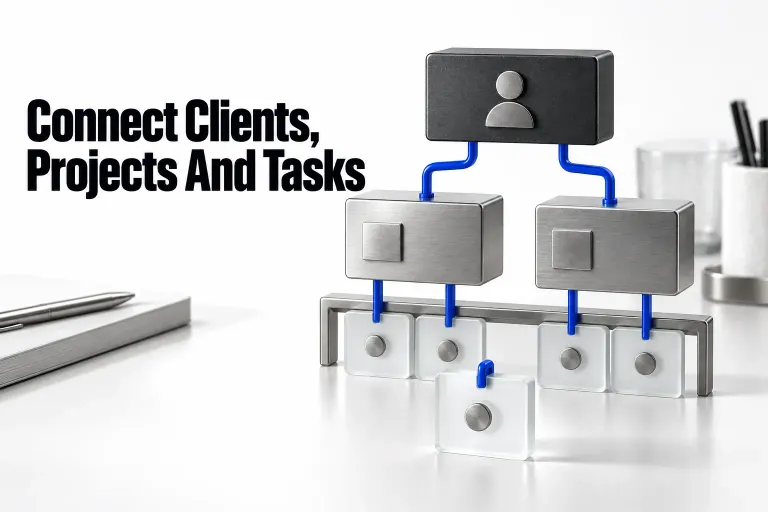
A useful Notion CRM for a freelancer needs a client record, a clear next action, and a date to revisit it. Link the client's projects to that record so you can follow the relationship without mixing contact details into every assignment.
I would start with two databases, Clients and Projects, and a manual follow-up queue. That is enough for a solo business where you can record important conversations yourself. Add more structure when you need to track several contacts or proposals separately. If automatic email capture is essential, assess a dedicated CRM before committing to this model.
Choose a model you can maintain
Decide whether each client record represents a company or a person. For business clients, I recommend one record per company and a named primary contact. For work sold directly to individuals, use one record per person. Switching between those meanings makes repeat clients difficult to recognize.
Before adding another client record, check whether that company or person already has one. Reuse the relationship record for new assignments; add a new Project for the new scope. In a company-based CRM, a new contact at the same business is not automatically a new client. Record the primary contact change, or introduce Contacts when the roles need separate records.
Keep the CRM focused on the relationship. Put scope and delivery deadlines on the project; put the next relationship action on the client record, such as sending a proposal or checking in after delivery. Detailed task scheduling belongs in the client project tracker.
If you are choosing a ready-made template, assess it against the same model. You should be able to find the next follow-up, identify the person responsible, and open the related project without searching through several dashboards. Check the workspace plan required by each feature separately from the template's price before buying.
Create the Clients database
Create a database named Clients and use a table view for setup. Notion's database property types provide the fields below. These names are choices for this workflow, not preset CRM fields.
| Property | Type | Purpose |
|---|---|---|
| Client | Title | The company or individual you work with. |
| Stage | Select | Lead, Onboarding, Active, Paused, or Archived. |
| Primary contact | Text | The person to approach at a company. |
| The main contact address. | ||
| Next action | Text | A specific action, such as "Send revised proposal." |
| Next review | Date | The day you need to act or reconsider the next step. |
| Last contact | Date | The date of the last meaningful conversation, entered manually. |
Build these fields with Add property, or the + beside the right-most column in an existing table. Name the field and choose the type listed in the table above. For Stage, type each of the five labels and press Enter to create its Select option; Notion documents property creation and Select values. Enter dates through the Date picker rather than typing date-like text into a Text field.

Stage uses Select because these labels describe a client relationship. Notion's Status property organizes progress into To-do, In Progress, and Complete groups, which fit delivery tasks more naturally.
For a small team, add an Owner property of type Person. Assign one person responsible for the next follow-up. A solo freelancer can leave that property out. Keep Last contact separate from Last edited time: Notion updates the latter when someone edits the record, so a corrected email address should not count as a client conversation.
Inside each client page, keep dated notes about decisions and agreements. "March 10: client requested a smaller launch scope" is more useful than an undated paragraph. Store only the contact information you need, and keep credentials out of routine CRM notes.
Connect clients to projects
If you already have a Projects database, connect it to Clients. Otherwise, create a Projects database and start with a title for each assignment. You can expand its delivery fields later.
- In Projects, add a property named Client and choose Relation.
- Select the Clients database as the destination.
- Turn on Show on Clients and name the corresponding property Projects. This creates a two-way relation.
- Select Add relation. Set the project's Client relation limit to 1 page for this model, and leave the client's Projects relation able to hold multiple pages.
- Open a project and select its client in the Client property. Check that the project also appears on that client's record.
Notion documents two-way relations and the 1 page limit. The limit is a choice for assignments with one client; leave it unrestricted if your work has several clients attached to one project.
For example, one company can have a website project and a separate maintenance project linked to the same client record. Its contact address stays in Clients. If you later use a database template for new projects, leave the Client relation empty unless every project created with it should point to the same client. Notion's template relation warning explains this behavior.
Give each stage a next step
A stage describes the relationship; Next action specifies the follow-up. Use the following definitions as a starting point and adjust them to your business.
| Stage | Use it when | Typical next action |
|---|---|---|
| Lead | You are considering an inquiry or proposal. | Qualify the request, send a proposal, or decline. |
| Onboarding | Work is agreed, but you are collecting requirements or approvals. | Request the missing brief or confirm the kickoff. |
| Active | Work or an ongoing engagement is underway. | Request feedback or review the relationship. |
| Paused | You expect to revisit the relationship, but no action is due yet. | Check whether the client's timing or budget has changed. |
| Archived | No follow-up is planned and offboarding is complete. | Keep or remove records according to your retention policy. |
"Waiting for feedback" records a situation. "Follow up on homepage feedback" gives you an action. Set Next review to the agreed follow-up date, including for Paused clients. Without a review date, a paused client can stay out of your working queue indefinitely.
A current client can also be considering new work. Keep the relationship Active; record the new proposal separately if it has its own decision date. Changing the entire client back to Lead would obscure the work already underway.
Build the daily follow-up queue
Create each working queue as its own view of Clients. Use the + beside the database name or existing views; on a smaller screen, open the current view name and choose New view. Select Table and name it. Notion’s view controls keep settings separate for each view, so configuring one queue does not configure the other.
Create a table view named Follow-up due. In the database's settings, open Filter under View settings and select Add advanced filter. Notion supports nested AND/OR filter groups and property sorting.
Combine these conditions with AND: Stage is not Archived; Next action is not empty; Next review is not empty; and Next review is today or earlier. Use a relative date condition so the queue advances with the day. Sort Next review ascending to put the oldest due item first. Show Client, Next action, and Next review; include Owner for a team.
Create a second table view named Needs a next step. Its outer group uses AND: Stage is not Archived, and an inner OR group contains Next action is empty or Next review is empty. For a team, also include Owner is empty in that OR group. Check this view first so missing fields cannot quietly keep a client out of the due queue.
The missing-field group must sit inside the outer AND group. If you make the whole filter OR, an Archived record with an empty date could return to the queue. Use Save for everyone when a shared team view should keep the same filter; leave it unselected for your own filter. Check both views separately after changing the model.

A board grouped by Stage is useful for reviewing the relationship pipeline. Keep the due table as your daily working view, because the same stage can contain clients with very different follow-up dates.
Check the queue with example records
Use these fictional records to check the filter logic yourself. Assume today is March 10; these are expected results from the rules above, not results of a product test.
| Example | Expected view | Reason |
|---|---|---|
| North Studio: Active, "Request feedback," review March 10 | Follow-up due | The action is defined and its review date has arrived. |
| Harbor Co.: Active, "Send maintenance options," review March 14 | Neither working queue | The record is complete and the review is in the future. |
| Cedar Labs: Onboarding, Next action empty, review March 10 | Needs a next step | The missing action needs attention before follow-up. |
| Maple Works: Paused, "Check launch timing," review March 9 | Follow-up due | A paused relationship still returns when its review date arrives. |
| Oak Design: Archived, review March 8 | Neither working queue | Both working views exclude archived records. |

If a record appears in the wrong view, inspect its actual property values and the AND/OR grouping. Confirm that Next review is a Date property, not a text column containing a date. You do not need a formula for this queue.
Maintain the record after each conversation
After a meaningful client exchange, add a dated note with the decision and update Last contact. Then replace the completed Next action with the next specific step and set its review date. If responsibility changes, update Owner at the same time.
When you are waiting on the client, choose the date for your follow-up. For example, "Ask whether the revised scope is approved" belongs on the client record; the detailed revisions belong on the related project. If you decide to stop pursuing the work, close the lead deliberately instead of repeatedly pushing the date forward.
A date and a notification are separate choices. To receive a reminder, open the Next review date picker and set Remind. Notion describes reminders in Date properties; assigning an Owner does not by itself configure a reminder for that person. For another person's reminder, Notion documents an @-mention and @remind in the same page block.
Start with manual updates. If you later adopt database automations, check the plan and permissions first. Notion's automation rules allow Free plan users to use existing template automations without editing them. Guests cannot create database automations. A promise of "automated follow-ups" therefore needs more detail than a template's headline.
Expand only for a real relationship need
A primary contact field is enough while you deal with one person at each company. Introduce a Contacts database when several people have distinct roles, such as a buyer and an approver. Relate each contact to the client and put that person's email on the contact record.
Use an Opportunities database for simultaneous proposals that need independent stages and follow-ups. Give each proposal its own next action, then relate it to the client. Keep the client's Stage for the overall relationship. This avoids overwriting the follow-up for one proposal with another.
Move conversation notes into an Interactions database when you need to filter them by date or assign follow-up across a team. Each interaction can link to its client. Until that need appears, dated notes inside the client page are easier to maintain.
Keep the internal CRM private
A client portal and an internal CRM serve different audiences. Put margin notes and sales judgments in the internal CRM, and share only the information the client needs. For a simple setup, I recommend a separate client page with approved project updates.
Hiding a column with Property visibility or filtering a view changes presentation. Use sharing permissions to control access. Notion also has actual page-level database access and property access rules on Business and Enterprise plans; these are different from hiding a property in a view.
Before inviting a client, check the page and parent-page sharing settings. Notion applies the broadest access a person has, and database users with Full access are not restricted by property rules. Review the shared page from the intended guest's account or ask the client to confirm their view. Use the client portal permissions guide for the full access design.
Archive clients and plan for exports
Make Archived a deliberate final state. Finish pending handoffs, review shared access, and record the retention decision before moving the client there. Changing Stage alone does not revoke access. Keep an archive view so old records remain findable when a client returns.
Before reorganizing or migrating important records, create an export and inspect its contents. Notion warns that reuploading a workspace export cannot instantly recreate the workspace. Treat an export as retained content, with a separate plan for rebuilding the CRM's structure.
Under Notion's current CSV import rules, imports add rows instead of updating existing ones. A new CSV import cannot create relations, rollups, or formulas; an import into an existing database can map a column to an existing relation property. Notion exports relations as plain text URLs and warns that a CSV cannot re-establish those relations by reimport alone. Document the links between clients and projects before a move.
Reassess the model when manual logging leaves important email history incomplete, or when you require controlled consent records and dependable duplicate handling. Write those requirements down and compare systems against them. Keep accounting and payment records in the tools responsible for them; a CRM link to an invoice should point to the authoritative record.
For the next setup session, create Clients, connect one example project, and check the two working queues. Leave optional databases out until a specific follow-up cannot be represented clearly in the smaller model.