By
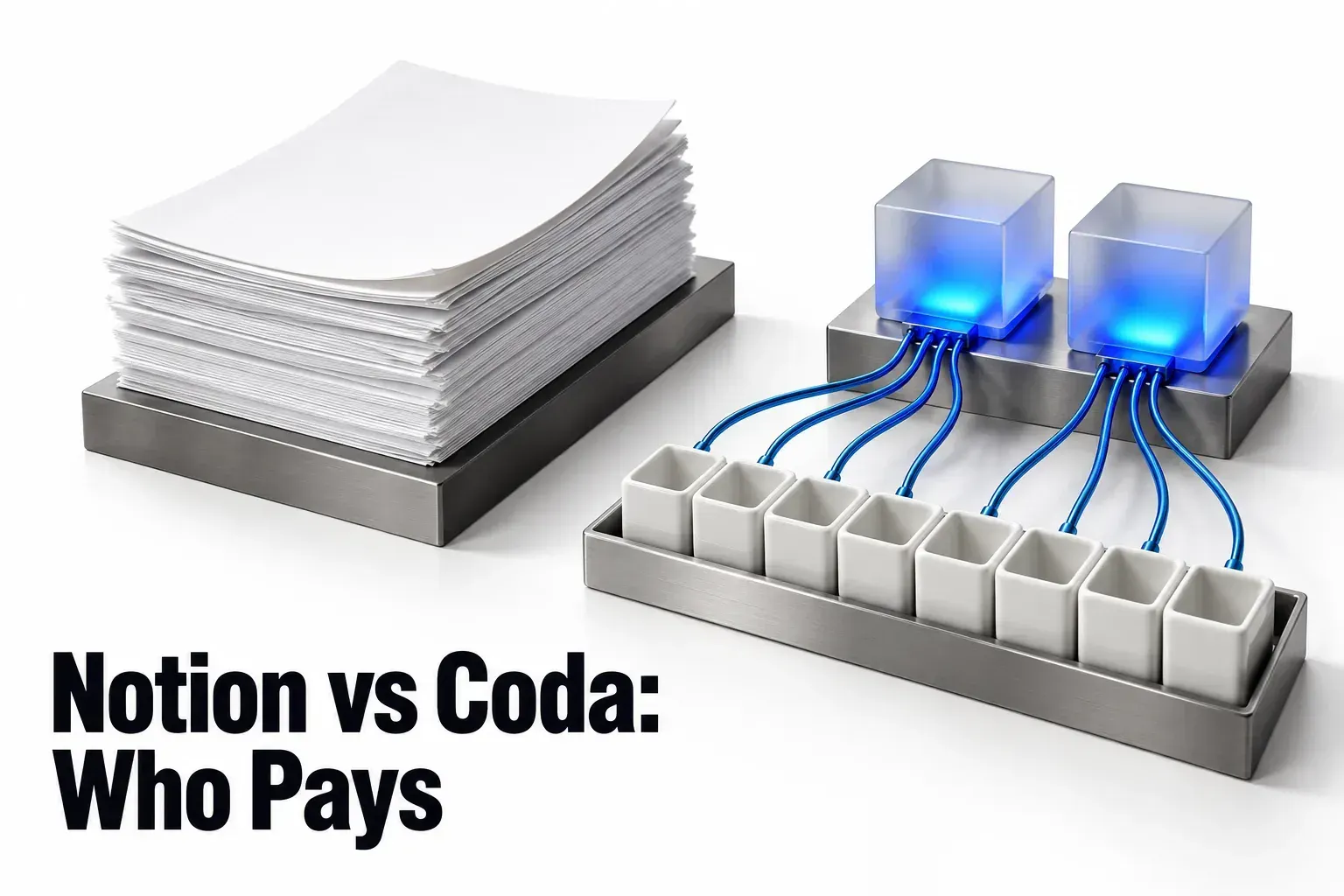
Choose Notion when the work is mostly writing, like briefs, wikis and client pages, and most people on the team create pages. Choose Coda, now Superhuman Docs, when the work is tables, formulas and automations that a builder or two set up and everyone else fills in. Coda bills only Doc Makers; Notion bills every member and keeps guests free. For a freelancer or small studio I'd start in Notion: everyone there ends up creating pages, and in Coda that's a paid Doc Maker's job.
The exception is a team with a couple of builders and a larger group that only updates tables. Two builders and eight contributors cost $24 a month on Coda Pro, billed annually, against $100 on Notion Plus with all ten as members. Coda isn't going away: Superhuman's rebrand FAQ says Coda became Superhuman Docs on July 8, 2026, that old Coda links redirect, and that existing plans, pricing and billing stay the same. I'll call it Coda below, since that's the name you probably searched for, and use Docs only in terms like Doc Maker and Docs AI.
Notion and Coda at a glance
| Point | Notion | Coda (Superhuman Docs) |
|---|---|---|
| Core model | Pages built from blocks, plus databases whose rows are pages. | Docs that mix pages, tables, views, canvas formulas and buttons. |
| Who pays | Every member on a paid plan; guests are free. | Doc Makers only; Editors, Viewers and Guest Editors are free. |
| Free plan for a team | Unlimited blocks for one person, limited for 2+ members; up to 10 guests. | No limits on personal docs; shared docs capped at 50 objects and 1,000 rows. |
| Paid entry price | Plus, $10 per member/month billed yearly. | Pro, $12 per Doc Maker/month billed annually; $15 billed monthly. |
| Automations | Basic buttons on Free; custom database automations from Plus. | Rules on every plan, with monthly quotas per doc on Free and Pro; unlimited on Business. |
| Version history | 7 days Free, 30 days Plus, 90 days Business, unlimited Enterprise. | 7 days Free (doc level only), 30 days Pro, unlimited Business and Enterprise. |
| File uploads | 5MB per file on Free; paid plans unlimited, ~5GB max per file. | Free 10MB per file, 1GB per doc; Pro 250MB and 5GB; Business 250MB per file, unlimited per doc. |
| Offline | Pages you mark Available offline in the desktop and mobile apps. | An open doc keeps working offline; changes are cached in the browser. |
| Apps | Desktop and mobile apps. | Desktop app for Mac; iOS and Android apps. |
| AI | Trial on Free and Plus; Notion Agent and AI Meeting Notes on Business. | Docs AI (beta) on paid plans under fair use; limited trial on Free. |
| Importing from the other | No Coda importer listed; tables come in as CSV. | Built-in importer for a Notion HTML export. |
The pattern across the rows: Coda is generous to the people who build inside a doc without creating new ones, and Notion is generous to the people outside your team who only need to see or edit a few pages.
Who pays: members in Notion, Doc Makers in Coda
Notion: every member pays, guests don't
Notion's rule fits in one line: on a paid plan "you will be charged a fee per member." On Notion's pricing page with yearly billing, Plus is $10 and Business $20 per member per month, Enterprise has custom pricing, and the page says yearly billing saves up to 20%. Guests are free on every plan, up to 10 on Free and unlimited on paid plans. They reach only the pages they're invited to and don't see the Teamspaces section in the sidebar.
Notion's sharing rules add two conditions to check before you count anyone as a guest. A guest needs their own Notion account, and an invite to an address on one of your organization's domains adds that person as a member, not a guest. The trade-offs between the two roles are set out in Notion guest vs member.
Coda: Doc Makers pay, Editors don't
On the Superhuman Docs plans page, Pro costs $12 per Doc Maker per month billed annually, or $15 billed monthly. Business, which several published comparisons still quote under its old Team name, costs $33 billed annually or $40 monthly, and Enterprise is custom. The plan FAQ is blunt about the rest: "Editors and Viewers are always free," and "Even on Enterprise, you pay only for Doc Makers." Coda's billing basics add that each billing cycle is charged on the number of Doc Makers at its end, and that upgrading a free workspace takes only one paid Doc Maker.
The line between the roles sits at creating, not at building. In Coda's role breakdown, a Doc Maker creates and deletes docs, adds pages and uses Docs AI to generate content. An Editor can't do those three things. Inside docs that already exist, though, an Editor can add tables and views, write formulas, build buttons, set up automations and forms, and open version history, and a workspace can have unlimited Editors. People outside the workspace join a shared doc as free Guest Editors, and Viewers can view and comment. New members arrive as Editors unless someone adds them as Doc Makers.
The free seat sits in a different place
A Notion guest is outside your workspace and sees only the pages you share, which suits clients. A Coda Editor is inside the workspace and can build in the docs they work in, but can't start a doc or a page, which suits teammates who log work into tables someone else designed. Coda enforces that line through roles. Deciding which teammates really need to create pages is still your call, and that decision sets the bill.

Two Coda settings to check before the first invoice
The first is the Doc Maker request. In a paid Coda workspace that isn't linked to a Superhuman bundle, the default is a 7-day grace period: an Editor who creates a doc, adds a page or uses Docs AI gets Doc Maker abilities for seven days, and if no admin acts, Coda's Doc Maker settings page says the person "will automatically become a billable Doc Maker." Admins can switch to instant or manual approval under Admin settings, in the Membership policies tab. Bundled workspaces handle every request manually. Declining has a cost too: the person loses Doc Maker abilities, and the docs they created become read-only until access is approved or ownership moves to another Doc Maker.
The second is a free-workspace rule. On Free, anyone who creates a doc becomes a workspace admin, and workspace admins are a type of Doc Maker, so a free workspace can reach its first upgrade with more Doc Makers than you planned. I'd open Admin settings, then the Members and roles tab, before upgrading. Anyone who only fills in tables can move to Editor, but transfer ownership of the docs they created to a builder first, because a demoted Doc Maker's own docs become read-only.
The free plans, side by side
Coda Free: unlimited alone, capped once shared
On Coda's free plan, personal docs, the ones you haven't shared with anyone, have no object or row limits. Shared docs on Free can hold up to 50 objects and 1,000 table rows. Objects are pages, tables and views, controls, canvas buttons and canvas formulas; button columns and formulas inside a table don't count, and the row total includes hidden rows. When a shared doc hits either limit, a 14-day grace period starts with warnings. If you don't upgrade or scale back by the end of it, the doc becomes locked and read-only. Both counters sit under the three-dot menu, then Doc settings, then Statistics.
The full list of doc limits covers the rest of the free tier: 10MB per attachment and 1GB per doc, 7 days of version history at doc level only, 35 time-based and 100 event-based automations per month per doc, and sync tables capped at 100 rows with manual refresh.
Notion Free: unlimited alone, limited from two members
Notion Free gives one person unlimited pages and blocks. For two or more members, the pricing page says only "limited". At that limit you can still read, edit and organize existing blocks, but you can't add new ones. Free also includes up to 10 guests, uploads up to 5MB each, 7 days of page history, basic forms, one chart to try and automations listed as "Basic buttons only".
For a solo freelancer who shares a few pages with clients, I'd start on Notion Free. Clients come in as guests, so the workspace still has one member, and a client page can grow without anyone counting objects. In Coda, sharing a doc with a client turns it into a shared doc, and every page, table and view in it counts toward the 50. For two or more people working together, neither free plan is a long-term home: one stops new blocks, the other locks the doc.
Tables, formulas and automations
This is where Coda's reputation comes from, and the published comparisons land on the same split. Zapier's comparison favors Notion for text and flexible pages and Coda for data, and the verdicts from Slite and Zite also send data-heavy work to Coda and writing-first work to Notion.
Coda: the doc is the app
A Coda doc mixes pages, tables, views and formulas on one canvas, and buttons can sit anywhere in it. Packs are Coda's extensions, with Packs for tools such as Slack, Jira, Google Calendar, Gmail and Salesforce. Cross-doc sync tables copy data from a source doc into another doc, two-way sync sends edits back to the original table, and sync pages place a page, or a whole doc, inside another doc so it can be edited from either end.
You'll find Coda automations under the three-dot menu, then Doc settings, then Automations, then Add Rule. Each rule needs a When and a Then. The When can be a row change (columns that contain formulas can't trigger one), a schedule (hourly, daily, weekly or monthly), a submitted form or a webhook. The Then can add, change, delete or duplicate rows, notify people in the doc, push buttons, or send notifications through Packs like Slack and Gmail, acting either as the Automation Bot or as you. Automations can't trigger other automations, so you chain extra steps with And Then inside one rule. Quotas follow the plan: 35 time-based and 100 event-based per month per doc on Free, 100 and 500 on Pro, unlimited on Business.
Notion: databases whose rows are pages
A Notion table shows database pages as rows, so a project's brief, call notes and status can share one record. Relations connect databases and rollups pull values across them; the build is walked through in relations and rollups for a client database. Notion formulas work in formula properties and also inside buttons, database buttons and database automations, and Notion Formulas 2.0 covers the current syntax.
Buttons work on every plan, though actions such as sending mail or a webhook need a paid plan. Database automations start from the lightning-bolt icon at the top of a database, then New automation, with three triggers: Page added, Property edited and Every {frequency}. Actions include editing properties, adding or editing pages in a database, sending a notification, an email from Gmail or a webhook, and posting to Slack. Database automations can't be triggered by other automations, but a button action can trigger one. The pricing table lists Free as "Basic buttons only" and custom database automations from Plus. Notion's help pages disagree on whether Free can create Slack-notification automations, so if that one matters, open New automation on your own plan and see whether it's offered. Synced databases, a one-way feed from Jira, GitHub, Asana or GitLab, need Business or Enterprise.
Both take intake forms. Coda's plan table lists forms as unlimited on Free, with custom branding and conditional logic from Pro. Notion forms are open to all members on all plans, with custom forms on Plus and conditional logic on Business and Enterprise; the follow-up side is covered in Notion forms for client intake.
I'd build in Coda when the doc itself is the tool: a quote calculator, an approval flow run by buttons, a tracker where several free Editors add their own automations. I'd stay in Notion for a client tracker where each project needs its own page of notes, because a row that is also a page keeps the writing and the status in one place. In both, the tool runs the rule; choosing the trigger, the owner and what happens on an exception stays with you, which is the method in trigger, action and exception. If you're weighing Notion's two options, buttons vs database automations compares them.
Offline and apps
Some comparisons still list offline mode as a Notion advantage. That no longer holds as written: Coda's offline mode lets you keep editing and syncs your changes once you're back online. The real difference is where the offline copy lives.
Coda loads the whole doc into your browser and caches your changes in browser storage. So the doc has to be opened online first, and you may lose changes if you refresh the page, log out, clear the cache or stay offline more than 30 days after your first offline edit. Refreshing a Pack sync table, loading an embed, adding a Pack and applying templates don't work offline. The mobile app behaves the same way: you need a connection to open a doc, and it keeps working if the connection drops.
Notion's offline guide says all users can view, edit and create pages offline in the desktop or mobile app. You pick pages in advance from the ••• menu with Available offline; for a database, the first 50 rows download automatically. Changes save locally and sync on reconnect, but you can't share pages or change permissions while offline, and embeds, forms and buttons are unavailable. Notion can also download recent and favorite pages on its own on some paid plans. Its pricing table and its offline guide don't name the same plans, so open the Offline tab in Settings to see what yours has saved.
For work on a plane or a train, I'd pick Notion, because the pages you marked stay downloaded in the app, while Coda's offline copy depends on the browser session you opened the doc in: refresh or log out and offline changes can be lost. If offline for you means local files you own, Notion vs Obsidian covers that choice.
On apps, Coda has a desktop app for Mac with near-identical functionality to the web version, plus iOS and Android apps; on mobile you can't add or edit formulas. Notion's offline pages live in its desktop and mobile apps.
Moving from one to the other
Notion to Coda: a built-in importer
- In Notion, export the top page as HTML: choose HTML from the dropdown and switch on Include subpages, as in Notion's export steps. Coda's Notion import guide also asks you to turn on Create folders for subpages, so database pages arrive as canvas columns rather than subpages.
- In Coda, open a doc, type /notion on a blank line, then choose Continue to upload and Upload ZIP file. Unzip first if the ZIP is over 2GB; Coda recommends keeping it under 500 MB. On Windows, files with paths longer than 260 characters can fail to import; Coda's guide points to enabling long paths in Windows, which takes a restart. To keep @mentions of people, start with a blank doc and share it with those people before importing.
- Open the new page called Read me: Import next steps and its Import fixes subpage, which lists each issue in the import with a suggested fix and a link to where it sits.
Formulas, filtering and alternative database views don't come through as they were, because the HTML export doesn't carry them; the values and data do arrive. Only the select, multi-select and status options in use come through, cell background colors are lost, and dates follow the settings of the doc you import into, so check them. Coda's guide also says a whole Notion workspace will feel much like a single Coda doc, so decide where each client lives before you import.
Coda to Notion: CSV, one table at a time
Notion's import page lists text and Markdown, Word, CSV, HTML, PDF and ZIP files, plus importers for apps like Confluence, Asana, Evernote and Trello. Coda isn't among them. The way out runs through Coda's export options. For one table, hover its upper-right corner, click Options, then See all options, open the three-dot menu and select Download as CSV. For everything, go to Account Settings, open Advanced Settings and click Export My Data, which produces .txt and .csv files for all the docs you own. Export covers only docs you own, so each owner exports their own.
In Notion, type / and search for CSV, or go to Settings, then Import. A new CSV import can't create relations, rollups or formulas, imports add rows rather than update existing ones, and dates come in as MM/DD/YYYY. Buttons, automations and Packs have no place in a CSV, so you rebuild them by hand. I'd move one client table first, rebuild its relations and one formula, and bring the rest only once that table behaves. An export also isn't a backup plan on its own; backing up a Notion client project explains why an export isn't a restore.

AI and the Superhuman bundle
Docs AI is in beta. The plan FAQ says it's included in any paid plan with unlimited access under a fair-use policy, and Free gets a limited number of trials. Editors on paid plans get the same kind of free trial; after it, continuing needs a paid Doc Maker role, and Coda counts using Docs AI among the Doc Maker actions that can start a Doc Maker request.
The bigger change is the bundle. Coda's billing basics say new subscribers get the full Superhuman suite, Docs included, at the tier they buy. Existing customers can stay on their current Docs plan; if they opt in, Coda Pro maps to Superhuman Pro and Coda Team to Superhuman Business. The Pro plan card lists Grammarly and Go, Business adds Mail and Databases (Beta), and a note on the Pro card says Grammarly Pro is included on annual plans and can be added for $15 a month on monthly ones.
Notion Free and Plus include a trial of Notion AI. Business adds Notion Agent and AI Meeting Notes, and Custom Agents run on Notion credits: free to try, then $10 per 1,000 monthly credits. What Notion AI is worth to a small team is covered in the Notion AI review for small teams. I wouldn't let AI decide this comparison, because both sides price it inside a plan you'd pick for other reasons.
Costs and limits, worked through
For a small team, the numbers that decide this choice are the bill and the plan limits. The tables below are calculated from Notion's yearly prices, Coda's per-Doc Maker prices billed annually and the documented limits on both sides.
| Team shape | Notion Plus | Notion Business | Coda Pro | Coda Business |
|---|---|---|---|---|
| Solo freelancer, clients as guests | $10 (or Free, $0) | $20 | $12 (or Free, $0) | $33 |
| 3 people, all create pages | 3 × $10 = $30 | 3 × $20 = $60 | 3 × $12 = $36 | 3 × $33 = $99 |
| 2 builders + 8 who only update tables | 10 members: $100; 2 members + 8 guests: $20 | 10 members: $200; 2 members + 8 guests: $40 | 2 × $12 = $24 | 2 × $33 = $66 |
| 6 people, all create pages | 6 × $10 = $60 | 6 × $20 = $120 | 6 × $12 = $72 | 6 × $33 = $198 |
Annual billing means paying the year up front: the three-person studio pays $360 a year on Notion Plus against $432 on Coda Pro. The guest figures in the third row only hold if those eight people can work as outsiders, with their own Notion accounts and access to the pages they're invited to but not the teamspaces. On monthly billing, Coda Pro is $15 and Business $40 per Doc Maker, so the two-builder team pays $30 or $80. Notion's page says yearly billing saves up to 20%, so its monthly prices sit above the ones in this table.
The rule behind the table: Coda Pro costs less than Notion Plus when 12 × Doc Makers is under 10 × the people you'd pay for in Notion, which means Doc Makers are under 10/12, about 83%, of that group. Coda Business beats Notion Business when Doc Makers are under 20/33, about 61%. With six paying Notion members, Coda Pro is cheaper with four Doc Makers ($48 against $60) and equal with five; Coda Business is cheaper with three ($99 against $120) and dearer with four ($132).
| Limit | Notion | Coda |
|---|---|---|
| Free plan with 2+ people | Blocks limited for 2+ members; at the limit you can edit but not add blocks. | Shared docs: 50 objects, 1,000 rows; 14-day grace period, then read-only. |
| Version history | 7 / 30 / 90 days, unlimited on Enterprise. | 7 days (doc level) / 30 days / unlimited on Business and Enterprise. |
| File uploads | Free 5MB per file; paid ~5GB max per file. | Free 10MB per file, 1GB per doc; Pro 250MB, 5GB; Business 250MB, unlimited per doc. |
| Automations | Free: basic buttons only; custom database automations from Plus. | Free: 35 time-based + 100 event-based per doc per month; Pro: 100 + 500; Business: unlimited. |
| Free people outside the bill | Guests: 10 on Free, unlimited on paid plans. | Editors: unlimited; Viewers and Guest Editors are free too. |
| Offline | Pages marked Available offline in the apps. | Docs opened online keep working in the browser cache. |
| Import from the other | No Coda importer; CSV per table. | Notion HTML import with an Import fixes list. |
Which one to choose
- Solo freelancer sharing pages with clients: Notion Free, then Plus at $10 a month once you need more than 10 guests, bigger uploads or longer history. Clients join as guests on the pages they need; the setup is in Notion client portal permissions.
- Small studio where everyone writes: Notion Plus. Three people cost $30 a month against $36 on Coda Pro, and anyone who starts meeting notes or briefs as new pages would be a Doc Maker in Coda anyway.
- Ops-heavy team with a few builders: Coda Pro, or Business for unlimited automations and version history. Two builders and eight contributors cost $24 or $66 a month, because Editors fill tables and run automations for free. Set the Doc Maker approval method before you invite the team.
- Team already paying for Grammarly: look at Coda Pro on annual billing, where the plan table lists Grammarly as included, and set that against what you pay for Grammarly now.
Two things would flip these picks. If your contributors can work as Notion guests, on invited pages and without the teamspaces, Notion bills only the builders too, at $10 against Coda's $12. If your Coda Editors would need to create pages every week, the Doc Maker saving shrinks toward nothing.
Before you move a whole workspace, rebuild one live client tracker in the other tool and note who had to create a page in a normal week. That count is your Doc Maker number, and it settles the price question. If the real need is a strict client database, compare Notion vs Airtable; for a board of cards, Notion vs Trello; for a task-first work app, Notion vs ClickUp for client workflows.