By
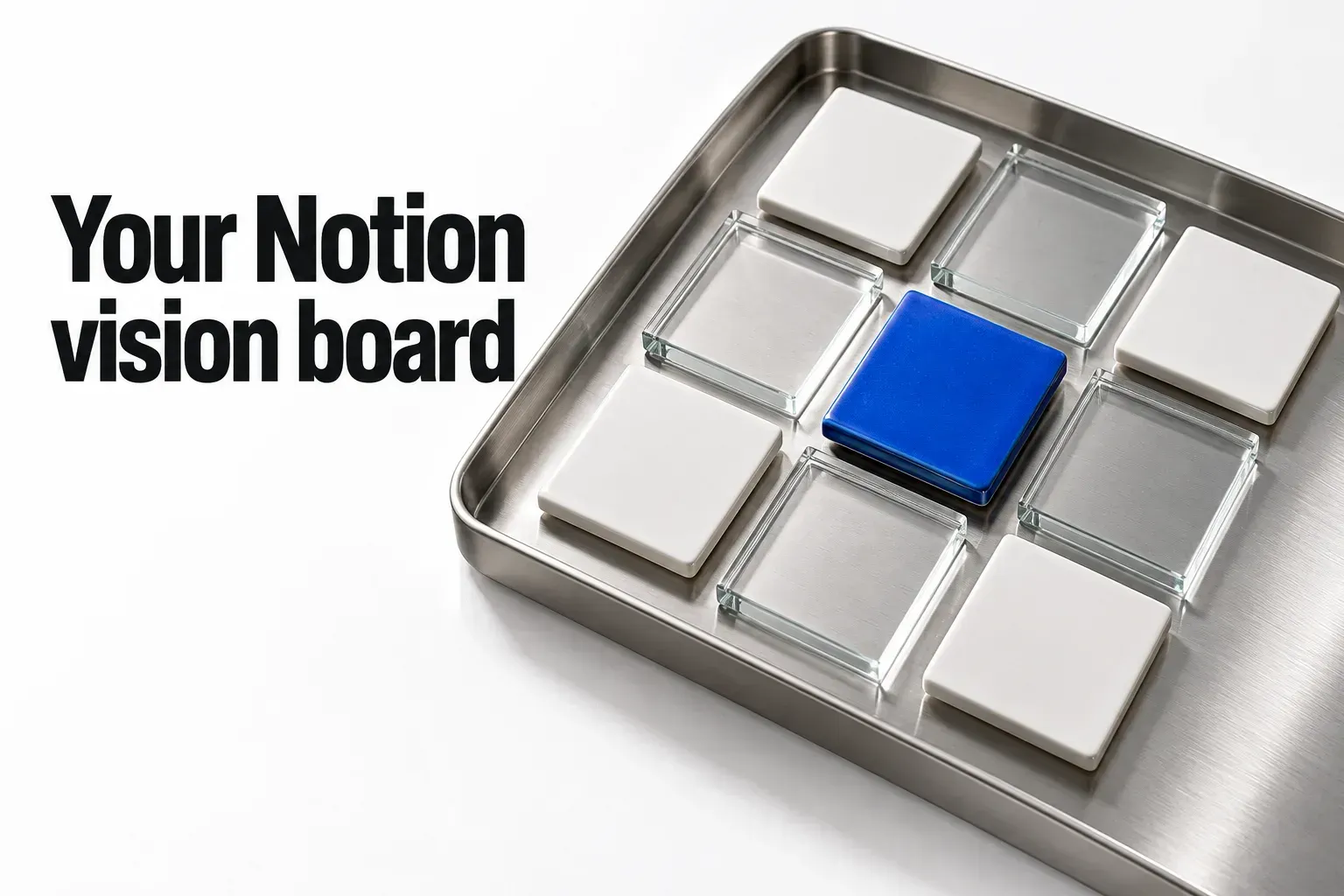
Make a Notion vision board as a gallery database: one card per picture, an Image property as the card preview, Name switched off and Card size set to large, so the cards read as one clean collage. Give every card a link to the goal it stands for. Built this way, the board also works on a phone, where a column collage would collapse into a single strip. If you'd rather use a template, the well-reviewed free ones rate so closely that shape should decide, not stars.
For the look today with no upkeep, duplicate a free template whose layout matches the board you want. For a board that points at real goals and opens on your phone, build the gallery below. I'd build it if you already keep goals in Notion, because the Goal relation can then point each picture at a goal page that exists.
Which free Notion vision board template should you duplicate?
Marketplace stars won't decide it for you. This comparison uses a 24-board shortlist drawn from the first page of Notion's vision board template category and its collection of free vision board picks. Thirteen free boards in that shortlist have 10 or more reviews: their median user rating is 4.83, the range runs from 4.74 to 4.97, and the reviews add up to 2,118. Include the other five rated boards in the shortlist and the range becomes 4.5 to 5.0 over 2,133 reviews, all for free templates. The four most-reviewed boards hold 1,192 of those 2,118 reviews, or 56%.
Those figures are marketplace user ratings and review counts. A spread that narrow means the stars barely separate the templates. Shape does: a picture-first collage, a board with goal pages, a year review, or a board joined to a planner. Among the shortlisted boards with at least 10 reviews, the highest rating, 4.97 from 114 reviews, belongs to a plain board called Vision Board, while the most-reviewed template sits at 4.81. Six of the 24 listings show no rating, including the only paid board in this shortlist ($8). Two additional listings titled Mood board or moodboard are outside this shortlist and its totals.
| Template | Rating | Reviews | What its listing describes |
|---|---|---|---|
| Collage-style board (most reviewed) | 4.81 | 351 | An image board with goal setting and progress tracking |
| 2026 Vision Board & Year Compass | 4.87 | 349 | A board with a year recap, a bingo card, an in/out list and a widget zone |
| The Blueprint Planner | Goals & Vision Board | 4.84 | 279 | Intentions and goal tracking beside the board |
| New Year's Vision Board | 4.78 | 213 | A board that keeps goals and inspirations in view |
| 2026 Vision Board | 4.83 | 177 | Pre-set sections for goals and affirmations |
| vision-board-2024 | 4.79 | 173 | Dreams and year goals in one space |
| Vision Board | 4.97 | 114 | A simple board to visualize and organize goals |
| Vision Board | Dreams | Goals | 4.80 | 111 | A board with a step-by-step Start Here section |
| Manifestation Board | 4.74 | 104 | Intentions, goals and manifestations in one place |
| 2024 | Vision Board | Glow Up + Reset Check List | 4.84 | 103 | New Year goals, a board, a glow-up list and a reset checklist |
| 2024 Vision Board + Monthly Planner | 4.92 | 90 | A board plus day-to-day progress tracking |
| Dream Life | 4.95 | 42 | Discovery questions, a board, and dreams lined up with values and financial goals |
| 2026 Vision Board | 4.83 | 12 | A vision gallery, goals, affirmations and reflection prompts |
Picture collage first
The most-reviewed collage-style board holds 4.81 from 351 reviews, and its listing describes an image board paired with goal setting and progress tracking. Vision Board, at 4.97 from 114, is the plainest of the group: its listing describes a simple board to visualize and organize goals. New Year's Vision Board, at 4.78 from 213, is listed as a board that keeps goals and inspirations in view. I'd pick this shape if the pictures are the point and your goals live on other pages.
Board plus goals
The listing for The Blueprint Planner | Goals & Vision Board, rated 4.84 from 279, describes setting intentions and tracking goals beside the board. 2026 Vision Board (4.83 from 177) lists pre-set sections for goals and affirmations, and Vision Board | Dreams | Goals (4.80 from 111) describes a step-by-step Start Here section. This shape suits you if you don't keep goals anywhere else and want one page to hold both.
Year review and compass
2026 Vision Board & Year Compass, the second most-reviewed at 4.87 from 349, has a listing that describes a vision board with a year recap, a bingo card, an in/out list and a widget zone. The listing for 2024 | Vision Board | Glow Up + Reset Check List (4.84 from 103) describes New Year goals with a reset checklist, and Dream Life (4.95 from 42) describes discovery questions and tools for lining up dreams with values and financial goals. Choose this shape for a once-a-year reflection rather than a board you open every week.
Board plus monthly planner
2024 Vision Board + Monthly Planner, rated 4.92 from 90, has a listing that describes keeping the year's aspirations in sight while tracking day-to-day progress. It fits someone who wants the board and the month's plan on one page. If you already plan your weeks somewhere else in Notion, I'd take a picture-first board instead, so the plan stays in one place.
Build your own vision board as a gallery
The build is one database with five properties and a handful of view settings. Each card should answer one question: which goal is this picture for? Start with five cards. If the board looks right with five, the rest is adding pictures. Sorting, grouping and opening cards work the same as in any gallery, and the Notion gallery view guide covers those; below are only the settings a vision board needs.
Create the gallery database
Notion's gallery help documents three routes:
- On a new page, under Get started with, click •••, then Gallery.
- On any existing page, type
/Gallery viewand press Enter for an inline gallery. - For a database you already have, click + next to the database name or the current view name, then choose Gallery.
Add five properties
| Property | Type | What it does on the board |
|---|---|---|
| Name | The built-in title | A short label you'll hide on the cards; it still helps when you search |
| Image | Files & media | Holds the picture the card shows |
| Area | Select | The theme, such as Health, Work, Home or Money, for filtered views |
| Goal | Relation to your Goals database | Opens the goal page behind the picture |
| Year | Select | Keeps this year's board intact when you start next year's |
No Goals database? Leave Goal out and mention the goal page inside each card's page instead: Notion's styling help notes that typing @ mentions any page in your workspace.
Point the card preview at the Image property
Open the settings menu at the top right of the database, choose Layout, click Card preview and pick Image. The gallery help lists three kinds of preview source: Page cover; Page content, which previews the page's first block and shows the picture when that block is an image or video; and any Files & media property by name. I'd use the Image property because the picture then lives apart from the page body, so notes, quotes and next steps inside a card never change what the board shows. With Page content, a line of text typed above the image becomes the preview.
Set Fit image, card size and hidden names
The same menu has a Fit image toggle. With it on, "the entirety of the image will fit within the frame of the card", and you can hover over a card's image and select Reposition to drag the picture into place. With it off, the image is cropped to fill the entire card frame. For a collage I'd switch Fit image off so every card is filled edge to edge, and switch it on for a quote card or any picture whose edges carry words you need to read.
Click Card size and pick from the dropdown; Notion's gallery database guide names the sizes small, medium or large. Large gives each picture the most room, and that's what makes a gallery read as a collage. Then open the Properties menu and switch off Name so each image stands alone. Notion's tip calls this "Helpful for simple and elegant mood boards and photo collections." Hide Area, Goal and Year from the cards the same way, through Property visibility in the settings menu, so only the pictures show. To reorder the board, click and hold a card, then drag it left, right, up or down.

Add pictures to the cards
Drag an image file onto a card in the gallery, or into the Image cell of a table view of the same database. Clicking the Image field also lets you upload from your computer or embed an image from elsewhere, per Notion's images and media help. Inside a card's page, type /image or click + in the left margin and choose Image, then upload a file, paste an image URL or pick a stock photo from Unsplash. For the pictures themselves, use your own photos, Unsplash inside Notion, or images you have the right to use.

Crop, mask and link a picture
These controls belong to image blocks on a page, such as a card's page or a column collage. Drag the black guides on the left or right edge to resize. Choose ••• → Crop image, then Save, to crop. To mask it into another shape, reopen ••• → Crop image, select the shapes icon in the top left corner, choose a shape and select Save, and click the caption icon for gray text underneath. To make an image open its goal page, hover over it, select ••• or ⋮⋮ → Add link and pick the Notion page; Notion doesn't create a backlink on the goal page when you do.
Gallery or columns: which layout holds up on a phone?
A column collage is the quick route on a desktop. Drag an image block by its ⋮⋮ handle next to another, follow the blue guides and drop it; Notion's columns help lets you create as many columns as you want across the page. The catch is the phone. Notion's note is plain: "Columns are available on tablet but not mobile", and on a phone the content of each right-hand column sits under the left one. A three-column collage turns into one long strip of pictures.
Galleries don't depend on columns at all, since each picture is its own card in one database view. That's why I'd build any board you plan to open on your phone as a gallery and keep columns for a page you only view on a computer.
A few page settings help on a large screen. Click ••• at the top right, open Appearance & layout and turn on Full width to give the gallery more room; the same menu sets the font to Default, Serif or Mono and has a Small text toggle. Notion's page styling help says text size and page width options exist only on desktop and web, so don't plan the phone view around them. A page cover across the top should be at least 1,500 pixels wide, Notion's recommendation, because covers resize with the window. For a centered title above the gallery, Notion doesn't offer traditional alignment options, so use one of the workarounds in how to center text in Notion.
Why won't a picture show on the board?
Most blank or odd cards come down to file size, file type, a blocked embed or the preview source.
- The file is too large. Notion's upload limit is up to 5MB per file on the Free plan and up to 5GB per file on a paid plan. An upload can still be too large to display as an image. If that happens, compress or resize the picture and upload it again. To keep the original separately, upload it as a file. I'd keep board images under 5MB so the board stays light and fits the Free plan.
- The format isn't supported. Supported image types include HEIC, JPEG, JPG, PNG, GIF, SVG and WEBP. Convert anything else to one of those.
- An embed shows Failed to Load. + → Embed or
/embedtakes a URL, but some sites prohibit embedding, and that error is the result. Save the image and upload it instead. Embeds that need a login to an external site won't work in Notion's desktop or mobile apps either. The other embed types are covered in the Notion embed guide. - The card shows text instead of a picture. Card preview is set to Page content and the page's first block isn't an image. Point Card preview at the Image property.
- The card is empty. Card preview points at Image, but that card has no file in it. Drag one onto the card.
Keep the board private while it holds pictures you collected rather than made. For a public version, build it from your own photos or images you have the right to use, then publish the page as the Notion website guide describes.
Connect each picture to a goal
A picture shows where you want to be. It can't tell you what to do this week, and the Goal relation closes that gap: open a card, follow the relation, and you land on the goal page. If you don't keep goals in Notion, the goal tracker build sets up a Goals database with milestones and progress that moves when you check one off. Add it first, then point the board's Goal property at it.
I'd keep the board to pictures and links and let other pages do the tracking. A daily routine behind a goal belongs in a Notion habit tracker, and the natural time to look at the board is when you plan the week, on a page like the weekly planner's Monday week page. The relation shows which goal each picture stands for. Whether that goal still deserves its card is your call at the review.

Notion's four steps, translated into the build
Notion's blog guide to making a vision board is a general method rather than a Notion tutorial. Here are its four steps and where each lands in the gallery:
- Start with a theme. Notion advises a finite, specific objective and one board for each goal. Here the Area property carries the theme, and a filtered view per Area gives each theme its own board inside one database.
- Collect images. Gather pictures that feel right. For a Notion board, that means your own photos, Unsplash inside Notion, or images you have the right to use.
- Make your collage. Shift the images until the layout pleases you, and add motivational text if you want. Dragging cards does the arranging, and affirmations fit in a toggle list under the gallery (type > and a space) so they fold away; the Notion toggle guide covers the rest.
- Keep it close. The guide suggests a desk, a computer screen background or the refrigerator, and revisiting the board as you take action. In Notion, close means the page you open first, and a personal dashboard can carry the board there.
The guide's own line is the right warning: "Vision boards work, but only if you do, too." The Goal relation is the part of this build that turns a picture into a next step.
The settings and limits Notion documents
Every setting in this build comes from Notion's help pages. Here they are side by side, with what each one means for a vision board.
| Setting or limit | What Notion documents | For your board |
|---|---|---|
| Card preview | The gallery help lists Page cover, Page content (the first block; an image or video there shows) and Files & media properties by name | Pick Image so page notes never change the picture |
| Fit image | On: the whole image fits the card frame, with Reposition to drag it. Off: the image is cropped to fill the frame | Off for an edge-to-edge collage; on for quote cards |
| Card size | The gallery database guide names small, medium or large | Large |
| Card names | Switch off Name in the Properties menu | Pictures stand alone |
| Image upload size | The images help: up to 5MB per file on Free, up to 5GB per file on a paid plan; an uploaded image can still be too large to display | Use compressed images under 5MB for a lighter board that also fits Free |
| Columns on phones | The columns help: "Columns are available on tablet but not mobile"; right-hand columns sit under the left one | Use a gallery for a board you open on a phone |
| Cover image | The styling help recommends at least 1,500 pixels wide; covers resize with the window | Use a wide photo for the page cover |
| Page width and text size | Full width, font and Small text sit under ••• → Appearance & layout; text size and page width exist only on desktop and web | Full width helps on a computer only |
My verdict: build the gallery if the board should lead somewhere
Build your own if the board should link to goals and live on your phone; take a template if you want the look today and won't maintain it. A gallery with an Image property, Fit image off, large cards and hidden names gives you the collage, and the Goal relation gives each picture a next step. For a template, choose the shape first: picture-first collage, board plus goals, year review, or board plus planner. Ratings between 4.74 and 4.97 won't make that choice for you.
The low-risk trial is to run both side by side. Duplicate one free template whose shape fits, build a five-card gallery next to it with the settings above, and keep the one you open again.