By
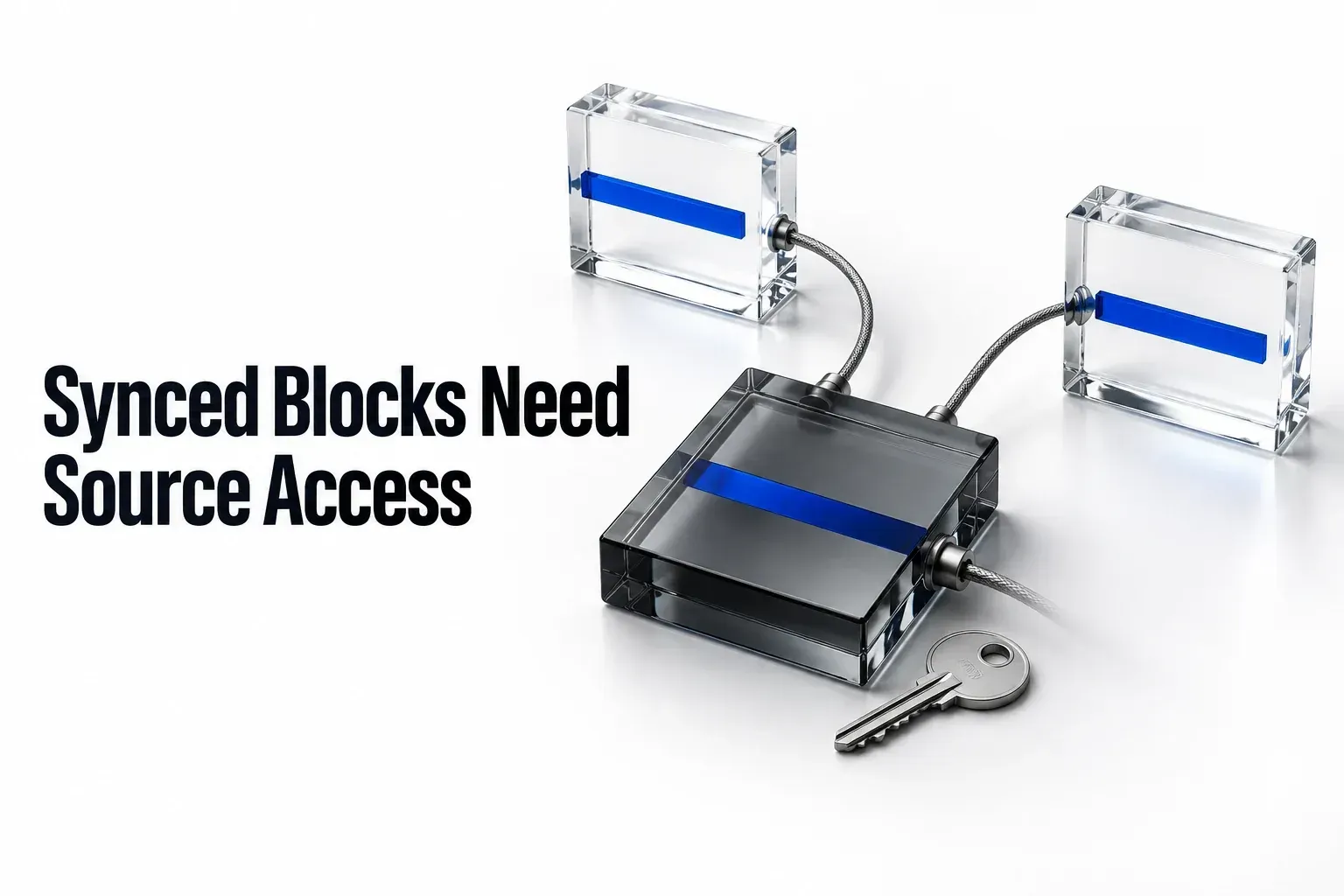
A synced block needs two access decisions: who can open the page containing a copy, and who can access the original. Sharing the destination page alone does not make the synced content visible. Notion’s original-page access rule requires readers to have access to the page containing the original; editing a copy also requires edit access to the original block.
I recommend placing reusable client-facing instructions on a small, separately shareable page before distributing copies. That gives you a clear place to manage the content and its readers. An internal operations page containing budgets, notes and a handoff checklist is a poor original if clients should see only the checklist.
Choose content that should change everywhere
Synced blocks are useful when several pages should show the same current instructions: a delivery policy, a contact process or a definition of project stages. Notion documents that an edit in any synced instance appears in the others. That includes a mistake made in a copy.
Keep the difference between instructions and work records clear. In an example handoff system, the delivery instructions can stay synced across project pages. The checklist that records whether this project has been delivered needs independent completion state. Checking a box in a still-synced checklist changes the shared content, so ordinary copied content is a better starting point when each project should have its own ticks.
For record creation and reusable page structure, a database template with deliberate defaults serves a different purpose. Use syncing only for the part you want future edits to change everywhere.
Create the original and a copy
Use original and destination pages you can edit before converting or pasting blocks. If you cannot change their content, ask the page owner for appropriate edit access before proceeding.
- Choose a page whose contents are appropriate for everyone who needs this synced material. Add only the reusable content intended for that audience.
- Select the blocks by dragging across them. Open the ⋮⋮ handle beside the selection and choose Turn into → Synced block.
- Select the synced block’s copy icon, then paste the copy into the destination page.
- While editing the block, open Editing in ↙ # other pages to inspect its locations. The page marked ORIGINAL is the one to use when checking access.

Before distributing the block, record the original page's name and one destination in your handoff notes. In the example, Delivery instructions is the small original page and North Studio handoff contains a copy. Those are educational page names. If the ORIGINAL label identifies a broad internal operations page instead, stop and review its contents before granting a client access.
Those conversion, copy and location controls follow Notion’s synced-block instructions. A visible copy in your editor confirms that you can reach the content. It does not establish what a guest or another team member can see.
Set reading and editing access separately
Before inviting people or changing grants, confirm that you have Full access on the relevant page or work with its owner. If sharing controls are unavailable, ask the owner to manage the grants. Open Share on the original page, invite the intended people and choose their permission level, then review the destination page’s grants as well. Notion’s page access levels distinguish Can view from Can edit: the first permits reading, while the second permits editing page content without the ability to share the page with others. Full access includes the ability to share.
To set a grant on either page, select Share at the top, open the dropdown next to the intended person, group or teamspace, and select the permission level. Repeat the check on the other page. These are Notion's page-specific permission controls; a grant on Delivery instructions is not a substitute for a grant on North Studio handoff.
For standard instructions, let most readers view the original and give editing rights only to the people responsible for maintaining it. You may want a client to edit their project page while only reading the shared instructions. Destination edit access is not a substitute for original edit access: Notion’s editing FAQ specifically requires edit access to the original block before someone can edit synced copies.
| Intended action | Original requirement | Destination check |
|---|---|---|
| Read the shared instructions | Reader can access the original page. | Reader can open the page containing the copy. |
| Edit the shared instructions | Editor has edit access to the original block. | The intended account can make the permitted edit in this location; a successful edit will affect other synced instances. |
| Edit only this project’s wording or completion state | A live synced connection would propagate that change. | Use independent content, or unsync this copy before making the local change. |

Read access to an original does not grant access to every page where a copy appears. Review those destination pages separately. Similarly, a link inside the synced text is another destination to check; the visible instructions are not proof that a reader can open every linked page.
Review the effective grants
In Share, inspect the people, groups, teamspace and general-access settings that apply to each page. Notion follows the broadest access granted to a user. A direct Can view grant does not keep someone read-only if another route gives them stronger access.
Placement matters too: subpages inherit their parent’s permissions when created. A separately named instructions page still needs an access review. Check what else appears on the original page and which nested pages or linked materials the reader could reach before inviting an external collaborator.
Use the client portal permissions guide when the broader question is how to separate client records, private work and shared pages. For this synced block, ask: can everyone who needs its content appropriately access its original, and who should be allowed to change the shared wording?
Check the setup as the intended reader
Use non-sensitive sample content and ask an intended reader, or an authorized account with equivalent grants, to open the destination. Have them confirm that the synced content appears and that any necessary page links open. Your own full-access account cannot answer that question.
If the instructions should be read-only, confirm that this account cannot change the synced wording even if it can edit surrounding project content. If editing is intended, make a harmless sample change and inspect another synced location, then remove that sample change.
| Observation | Check | Next action |
|---|---|---|
| Destination opens but synced content does not appear | Locate ORIGINAL and inspect this reader's effective access to that page. | Give appropriate read access only if the original is suitable for that reader. Otherwise use an appropriately shareable original; do not open an entire private operations page. |
| Reader can see instructions but cannot edit them | Was shared editing intended, and does the reader have edit access to the original? | Keep this state for standard read-only instructions. Give original edit access only to someone who should change every synced instance, then verify the destination as well. |
| A supposedly read-only reader can change shared wording | Look for a stronger person, group, teamspace or general grant. | Have the page owner correct the broader grant. Lowering one direct permission will not override another stronger route. |
These checks concern the named reader, not the owner's account. If the owner can see the block, that establishes neither the client's original-page access nor the client's ability to edit.
When a copy is already invisible to a client, follow the focused original-access diagnosis. Avoid broadening an internal page’s access just to make a copy appear.
Unsync one copy when it needs to be independent
For local wording or a project-specific checklist, hover over the copy and choose ••• → Unsync. Notion’s single-copy unsync instructions say this breaks its connection: subsequent edits no longer affect the other copies. Page links inside the block remain, so their target permissions still deserve a separate check.
Unsync all is a different command on the original. Before using it or deleting the original, inspect how many copies exist and preserve content you need. Notion warns that with more than 10 copies, Unsync all or deletion of the original removes all copies. Its FAQ also says Undo will not restore those copies after deleting the original in this case. Unsync individual copies when you need to retain them as independent content.

Once a copy is independent, it stops receiving future revisions from the original. Choose that deliberately: stable shared instructions belong in the synced content; exceptions and each project’s completion record belong in its own page.