By
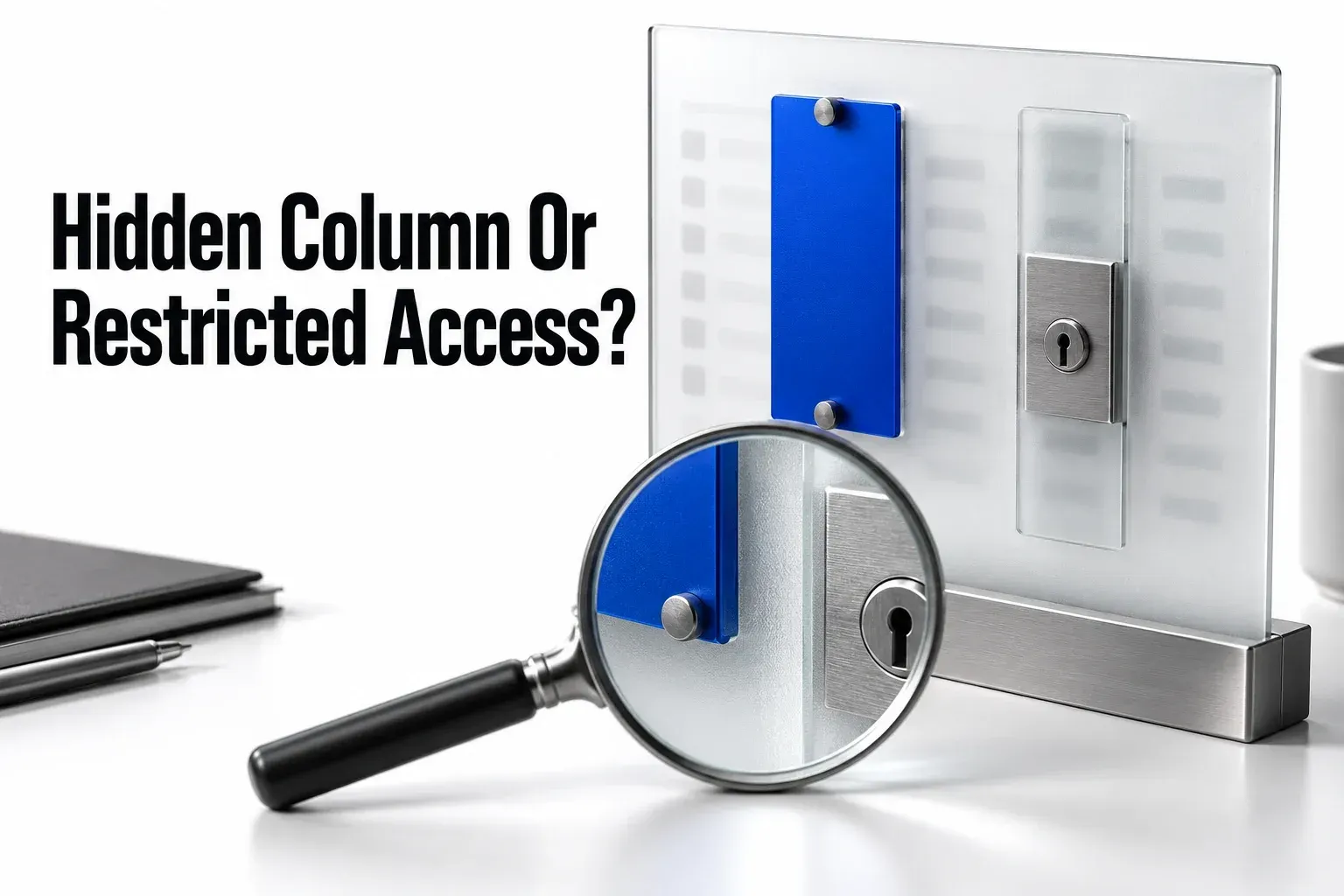
If a client can open a Notion record but cannot see a property, check two things: the view's property visibility and the client's property-access rule. A column hidden for a cleaner layout is different from a column the client lacks permission to read. Notion now supports database property access on Business and Enterprise, including rules that hide both a column and its values.
I would identify the exact symptom before changing permissions. Granting more access can expose internal information without fixing a poorly configured view.
Identify the missing part
Ask the client for the record or portal link they are opening, the missing property name, and whether the column is absent or its values are hidden. Then follow the matching branch:
| Client's symptom | First check |
|---|---|
| The record itself will not open | Page access. A property rule cannot grant access to a page. |
| A column is missing in one view | That view's Property visibility, then the effective property rule. |
| The column name appears, but its values are hidden | Whether the rule grants Can view property only. |
| The client sees a value but cannot edit it | Whether their property-access level permits value edits. |
| The whole view will not open | Whether its filter, sort, or grouping uses a column the client cannot see. |
A missing record belongs to the page and portal access checks. A missing task in an otherwise working view belongs to the filtered-task diagnosis. This guide deals with a property on a record the client should already be able to open.
Check view visibility before widening access
In the affected view, open the settings menu and select Property visibility. Use the eye control beside the field to show or hide it, following Notion's property-visibility instructions. If showing the field fixes the layout, leave the access rules alone.
Visibility settings do not establish a privacy boundary. Notion documents separate presentation settings for each view; property access determines which columns a person can read or change. On Free or Plus, do not rely on a hidden column to protect internal notes. Keep confidential information on separately permissioned pages or in a database the client cannot access.
For a linked view, inspect the rule at its original source. The linked-database editing guide explains how to identify that source without changing its records.
Inspect the client's effective property rule
To manage property access, the workspace must be on Business or Enterprise, and you must have Full access to the database. Use web or desktop; mobile applies existing rules but cannot create or change them. Notion's property-access requirements apply to the person configuring the rule.
- Open the original database in a table view, rather than a linked view.
- Open the affected column's menu and select Property access.
- Read the default access for everyone who can open the database. Check the exceptions that apply to this client.
- Select Preview and choose the client to see their effective permission.
- If the client needs this field for their work, change the relevant rule to the required level, preview it again, and save. Keep internal fields restricted.

Notion's setup sequence supports exceptions for individuals or groups. An exception can also depend on a Person property's value or target an agent. The first rule added to a column can take a few minutes to save, with larger databases taking longer.
Match the access level to the task
The names in the property-access menu distinguish reading values from editing them:
| Property-access level | Meaning |
|---|---|
| Inherit from database | The person's database access determines their access to the column. |
| Can edit property & values | They can edit the property itself and its values. |
| Can edit values only | They can edit values but cannot edit the property definition. |
| Can view property only | They can see the column exists, but its values are hidden. |
| Can view property & values | They can see the column and its values. |
| No access | The column and its values are hidden. |
A delivery field the client can actually read
Take a hypothetical client, Nora, who already has access to the page Draft proposal. It contains a Delivery date of 14 Nov and an Internal margin field. She needs to read the delivery date, but the margin is internal. Assume she has no Full access and no broader exception that overrides the restrictions you intend.
| Delivery date rule for Nora | Expected result on an accessible record |
|---|---|
| No access | The Delivery date column and value are hidden. |
| Can view property only | Nora can see the field exists, but cannot read 14 Nov. |
| Can view property & values | Nora can see the field and read 14 Nov. |
The middle choice would not make the deadline readable: knowing that a deadline field exists is not the same as knowing the deadline. Set the required Delivery date exception, inspect Preview → Nora, and save it. Then have Nora open the actual record and view. Check Delivery date and Internal margin separately; granting the first field does not define the second field's rule.

For a client who needs to read an approved delivery date, I'd choose Can view property & values. For a field they're responsible for updating, go with Can edit values only: they can change the values but not the property definition. Both are decisions about one field, and neither requires handing the client control of the database structure.
If an exception depends on a Person property, check that the record's Person value matches the intended exception. Notion's exception based on the project owner grants a project owner access to the Cost value for their own project, rather than every project's cost. It also notes that people may see a column name while its values remain hidden when access depends on a Person column.
Check broader access and unsupported fields
Your own administrator view cannot prove a column is hidden from the client. Someone with Full access to the database always has full access to its properties, regardless of a column rule. Notion's access-interaction rules also say the least restrictive exception wins when someone matches several. If a restricted field remains visible, inspect the client's broader access in Share, then return to Preview.
When Property access is missing, recheck the plan, your Full access, and web or desktop. If those requirements are met, check the feature's limits. Rules can cover a maximum of 20 different properties in a database, and wiki databases do not support them.
Some fields cannot be restricted. This includes Title and ID, along with Created by, Created time, Last edited by, and Last edited time. Certain synced properties and subitem or parent relation properties are excluded too. Move sensitive material out of an unsupported field instead of trying to hide it with view settings.
Repair views and workflows that use restricted fields
A client can have access to a record and still be unable to open a view that filters, sorts, or groups by a column they cannot see. Notion's restricted-column troubleshooting recommends a view that does not use that column. For example, keep an internal-margin filter out of the client's delivery view; there is no reason to reveal the margin just to make the view open.
The same access problem can affect a button or automation, and a formula or rollup may depend on a property the person can't access. Follow the official troubleshooting sequence: compare the workflow with someone who can see the required column, then inspect the missing access. If the person needs that field for their work, change the permission on purpose. If the field is internal, I'd rebuild the workflow around permitted fields rather than widen access to make it run.
After saving the change, ask the client to reopen the intended view and record. They should be able to read the required field, edit it only if that is intended, and still lack access to the internal fields you meant to protect. Verify the client's result rather than relying on what your Full access account displays.
If the required value is still hidden, compare that client's Preview result with the saved default and matching exceptions before granting wider access. If an internal field became visible, return to that field's rule and inspect the client's broader sharing grants. Recheck both fields after the correction. Restoring an old database version is not a permission rollback: Notion says restoration retains the current property-access rules.